One resource can be associated with multiple resource types. Use this feature in scenarios where individual resources have multiple usages for Activities and/or Rentals.
You can easily associate multiple resources TWO (2) ways:
Option 1 (Individually):
This option can add one or more resource types to one resource at a time.
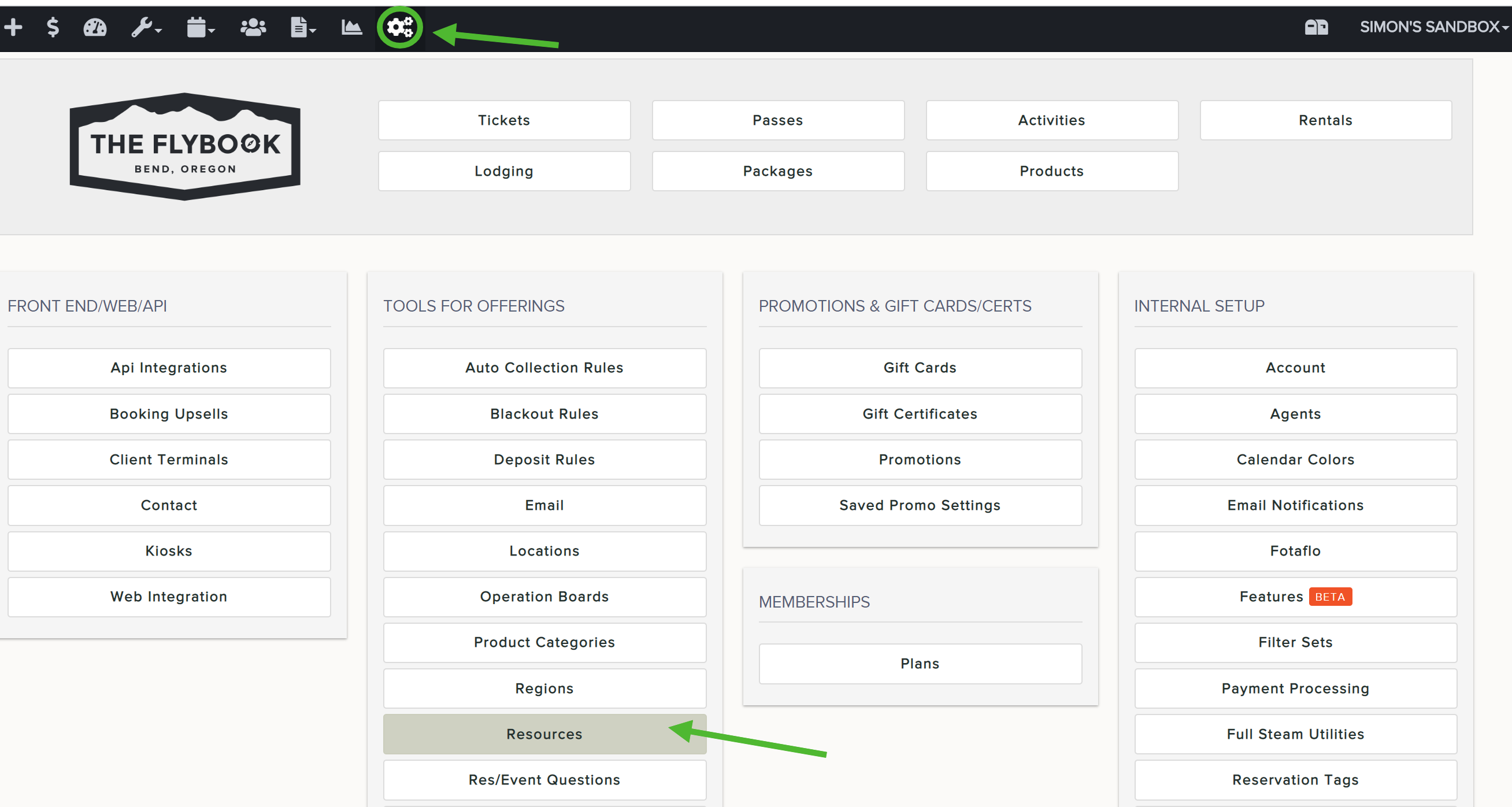
- Go to Setup and click Resources
- Click on the Resource you wish to update
- On the right, find the resource from the dropdown and click Add
- Repeat until you have added all resource types
- Save your work and X out to return to the list of resources
- Repeat if you need to do this for other resources

Option 2 (Bulk Edit):
This option can bulk edit multiple resources at once, but will only add/remove one resource type at a time.
- Go to Setup and click Resources
- Check the box next to resources you wish to add the SAME resource type to
- Select the Action dropdown and Bulk Edit Resource Settings
- Mark "Update Resource Types" and pick the appropriate resource to add or remove from their respective dropdowns
- Save your work and repeat as needed