Note: Activities, Lodging, Packages, Passes, Rentals, and/or Tickets must be configured on the Front End for them to appear with upsell options.
To have upsells appear for your front end checkout, follow the steps below:
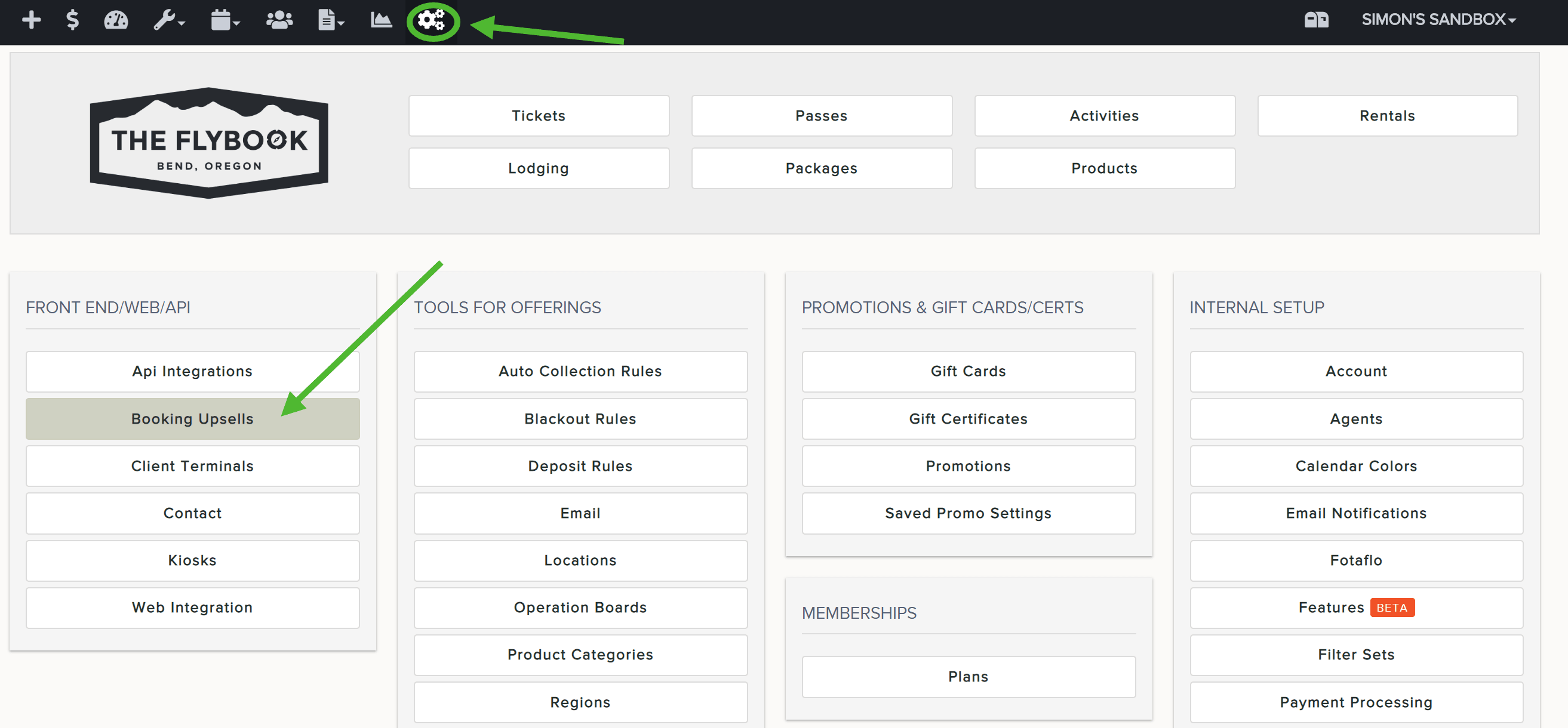
- Go to SETUP and Booking Upsells (under FRONT END/WEB/API)
- Optional: on the Upsell Management screen, use the Select Type dropdown to filter the item categories you would like to apply upsells to (i.e. Activites, Lodging, Packages, Passes, Rentals, or Tickets). The default will show all
- Once changed, the "When this item is in the cart" dropdown will change to match the appropriate items found within the selected "type" (For example, only tickets will display if Tickets were selected)
- Pick an upsell from the dropdown, and on the right, designate the appropriate items to be offered as upsells during the front-end booking process (For example, when the customer is purchasing a "Ticket" for Zip Line General, upsell a "Product" of Gloves)
Note: it should auto-save with a GREEN bar at the bottom of the screen - Optional: If you wish to lump a few items into an upsell category (products only), do so by first creating an upsell category under Setup > Upsell Categories > Add New. Then, you'll need to assign such categories to the products themselves under Setup > Products > Click Product > Select newly added category from the dropdown. You can then assign them together by selecting the new category under "Front End Upsell Categories" on the upsell setup page
- Repeat the above steps until you are done.
Tip: Do not overwhelm customers with too many upsell options as this will require scrolling - especially on mobile bookings. A short list of 3-6 will look balanced. A little less or more is okay too - Test this on the front end by attempting to add the selected item to your cart. You should be prompted with the designated upsell option prior to making a payment. You can either do a quick add to your cart or bypass by selecting Continue to Checkout
Note: if you want an image to appear, go to the item's setup and add a photo
You're done! That's how you add an upsell.