To create a package,
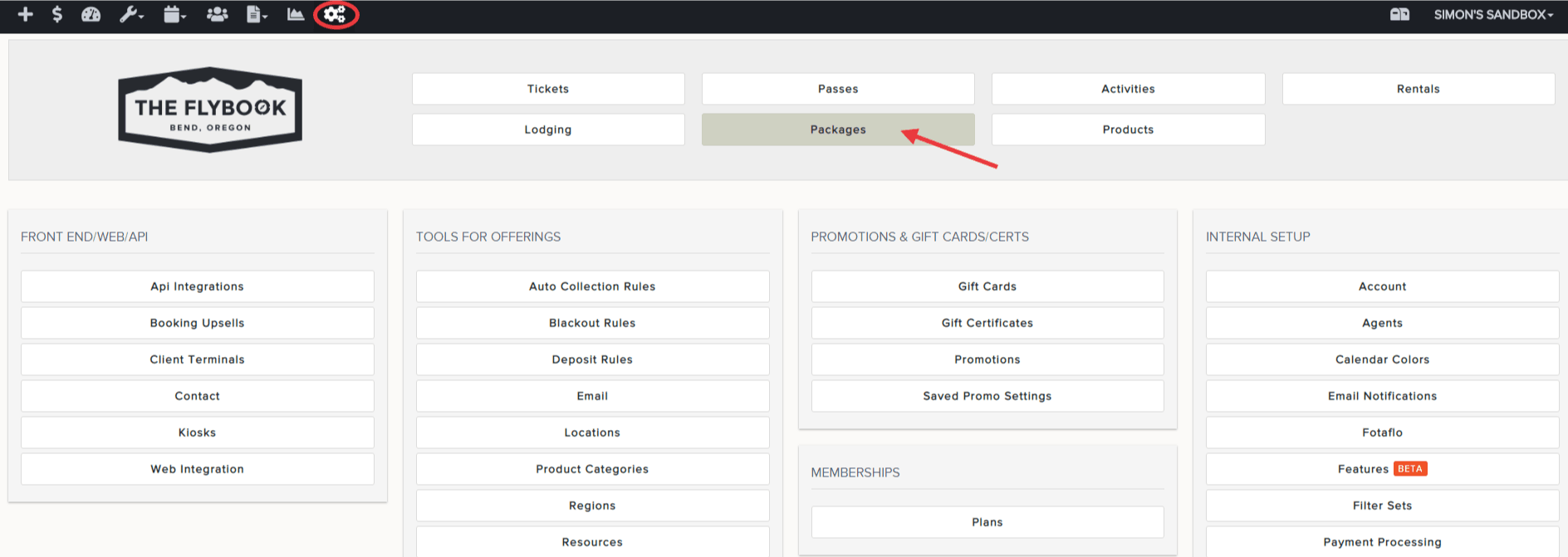
- Go to Setup and Packages
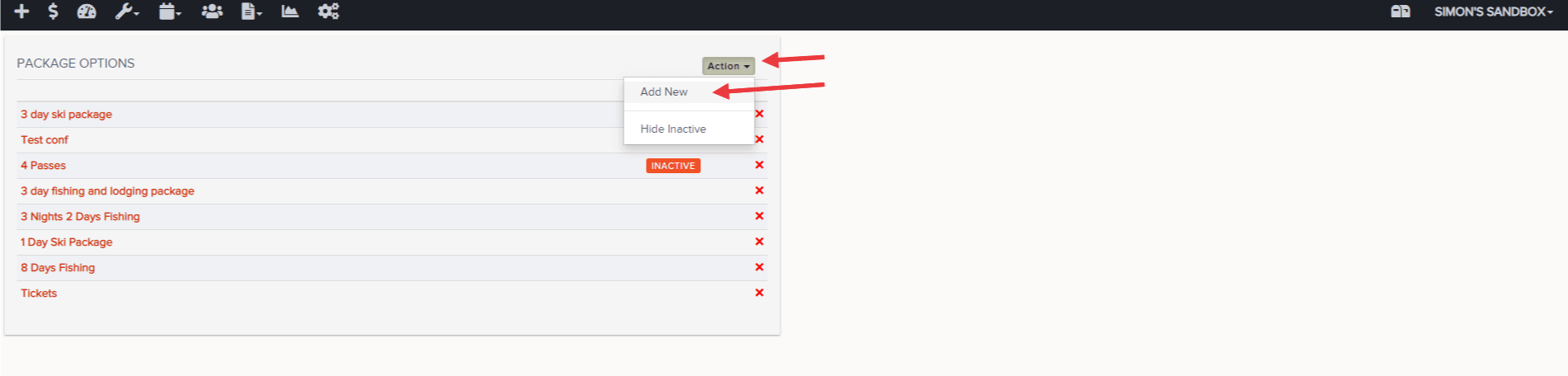
- Click the Action dropdown and Add New
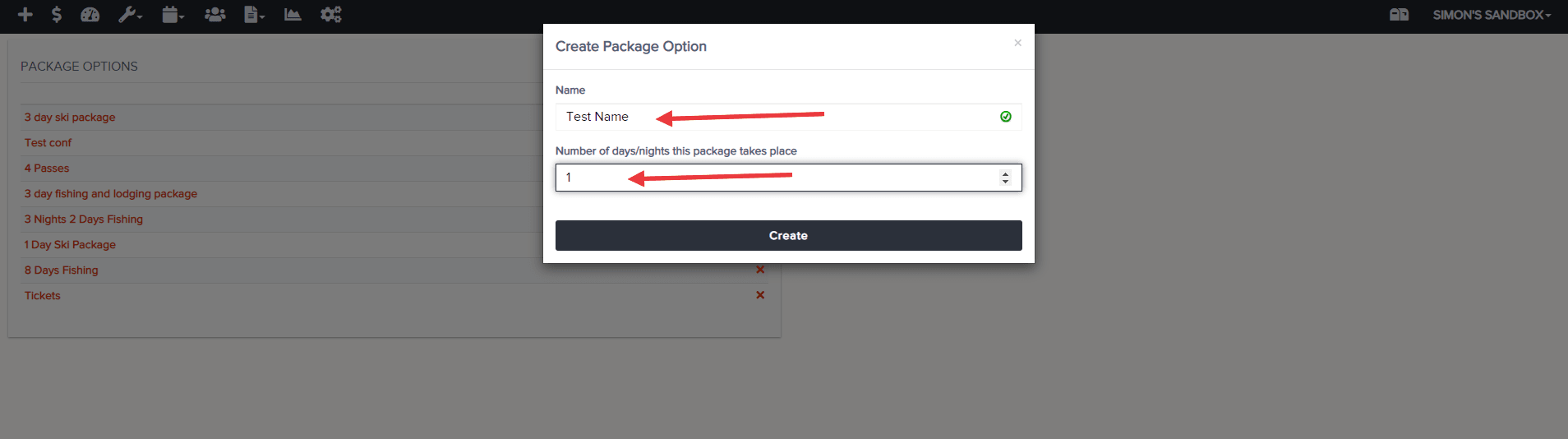
- Give your package a name, type in how many days/nights it will be, and hit "Create"
- Optional:
Fill out any min/max guest info on left. Record hours required prior to booking (if applicable). Select "Auto-Fill Package" if you wish the system to auto-fill packages rather than have front-end guests do so, manually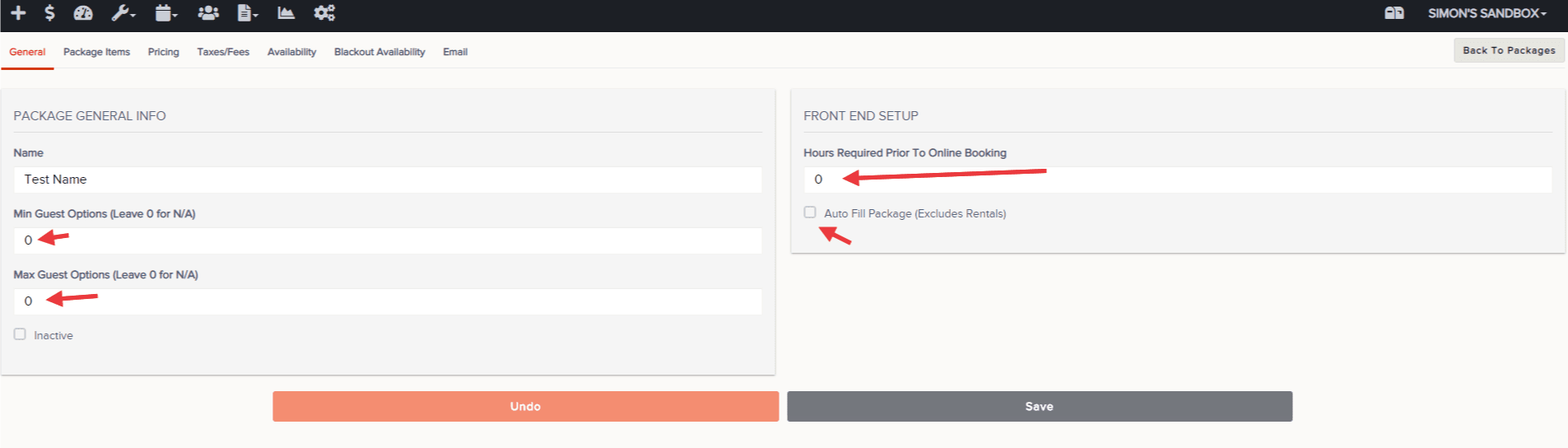
- Proceed to the Package Items tab and assign activities, rentals, lodging, etc. to each day/night. Packages will only search/auto-fill items within your desired timeframes (i.e. Activity falling between 8 am and 9 am AND 1-hour bike rentals between 9 am and 11 am)
Note: All items within a package must be available in order to book it. Icons will appear next to each day/night, previewing the appropriately configured items (see below)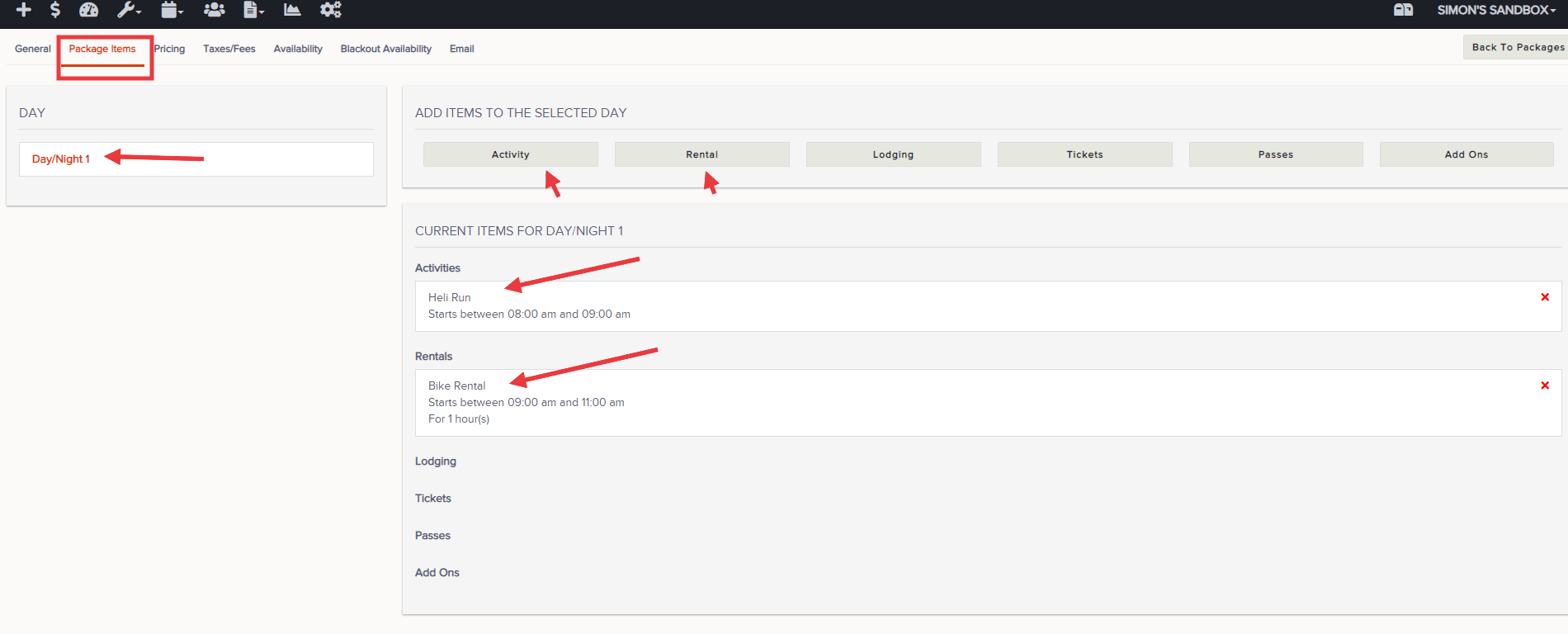
- Proceed to the Pricing tab to add pricing rules and optional modifiers. Select Action and Add New Rule
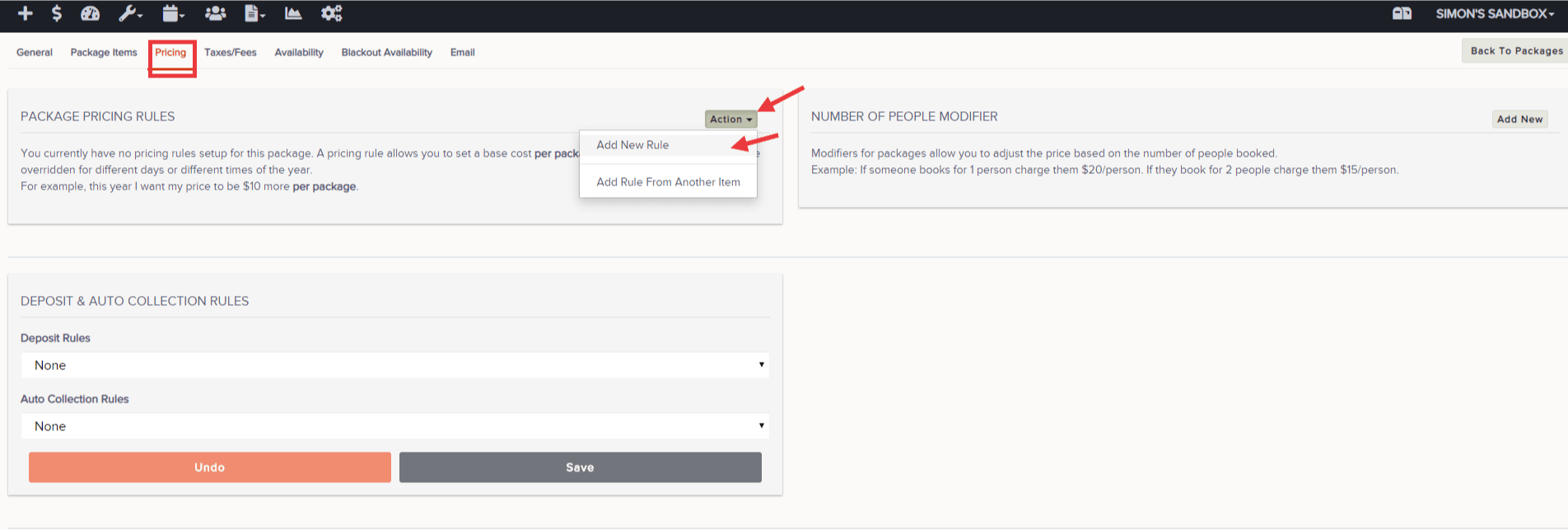
- Click on "Pricing Rule" and add the applicable base price and any potential filters for when it should apply
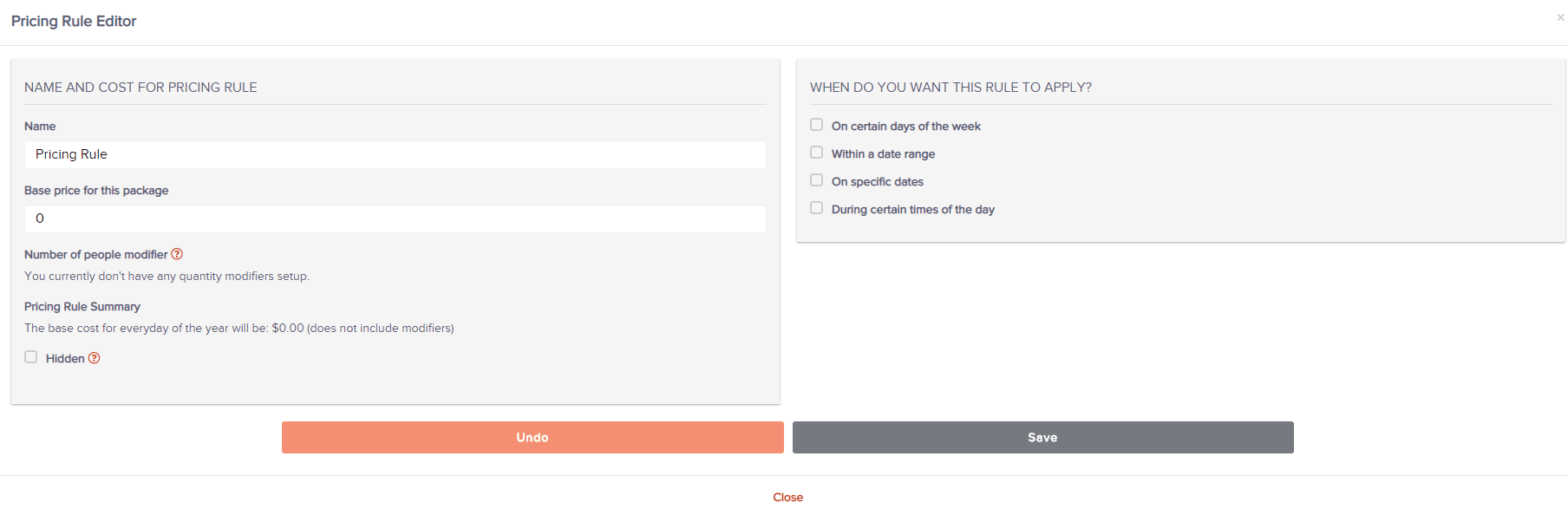
- Optional:
After saving the pricing rule, add a number of people modifier if discounts or upcharges apply when numerous people are booked. Select "Add New" and click on "Modifier".
Detailed instructions for building and assigning modifiers can be found here.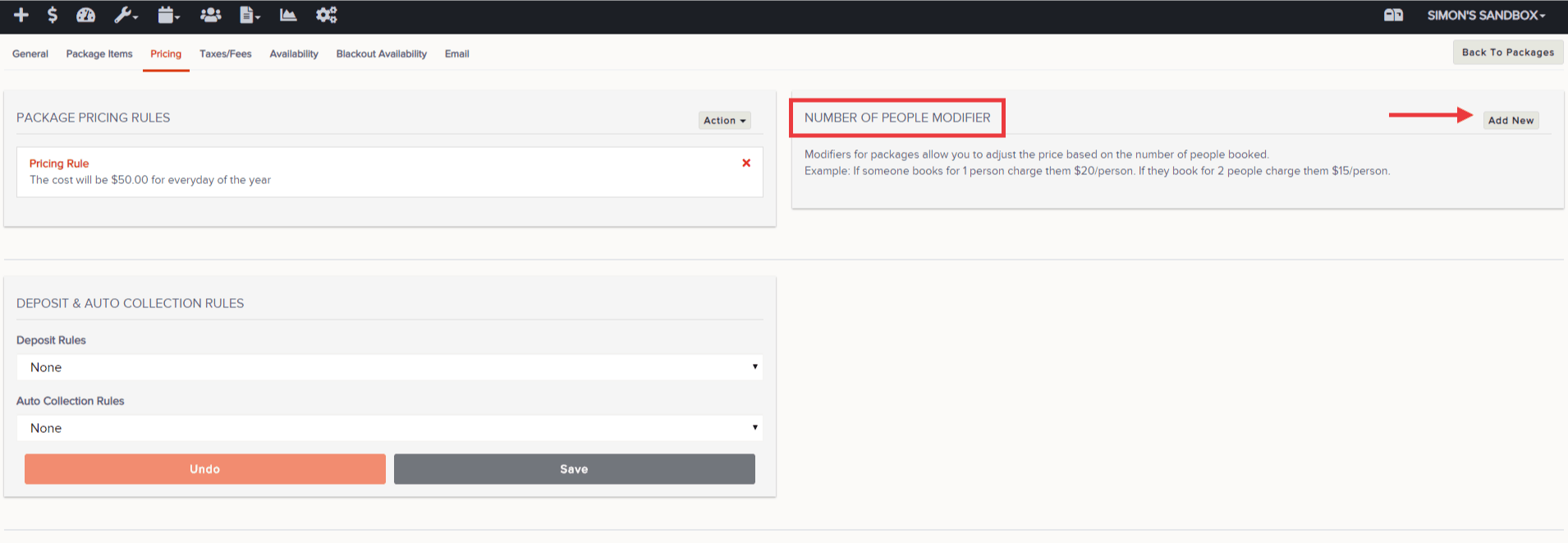
Important: do not forget to assign this modifier to the pricing rule after creating it. Click on the Pricing Rule and see the screenshot below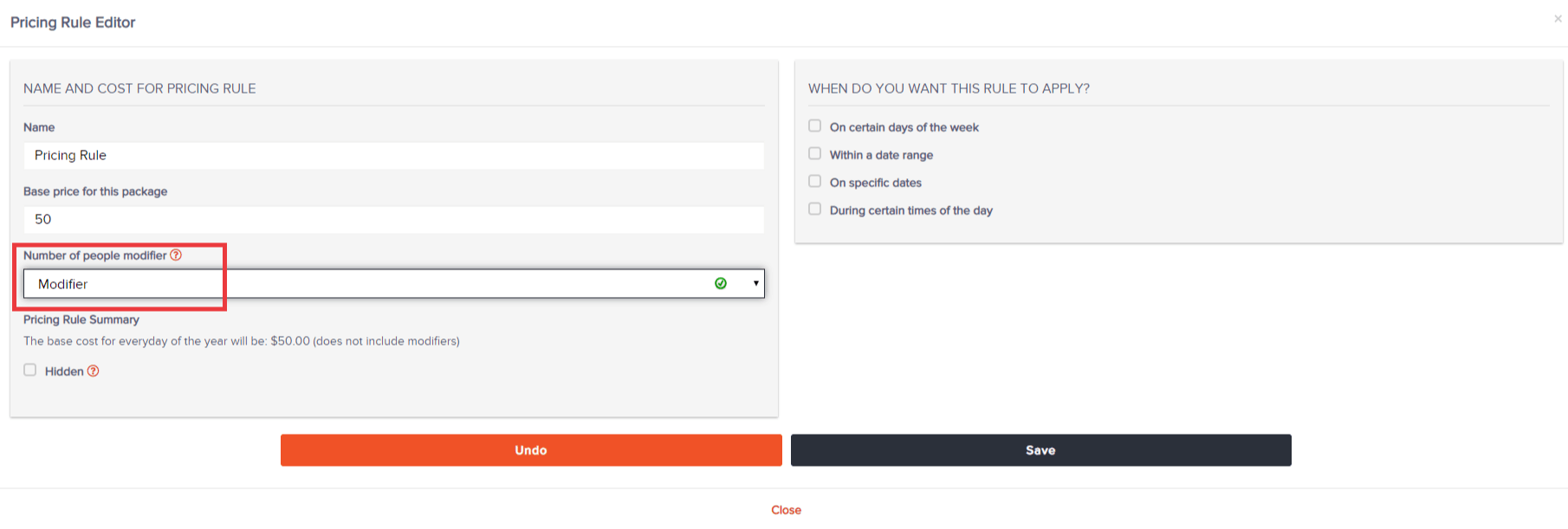
- Optional:
If taxes and/or fees apply, proceed to the Taxes/Fees tab, click Add New, and Edit from the dropdown. Enter description/name, whether it will be a percentage or a flat fee, if it should be optional (back-end use only), and whether or not is it taxable. Don't forget to save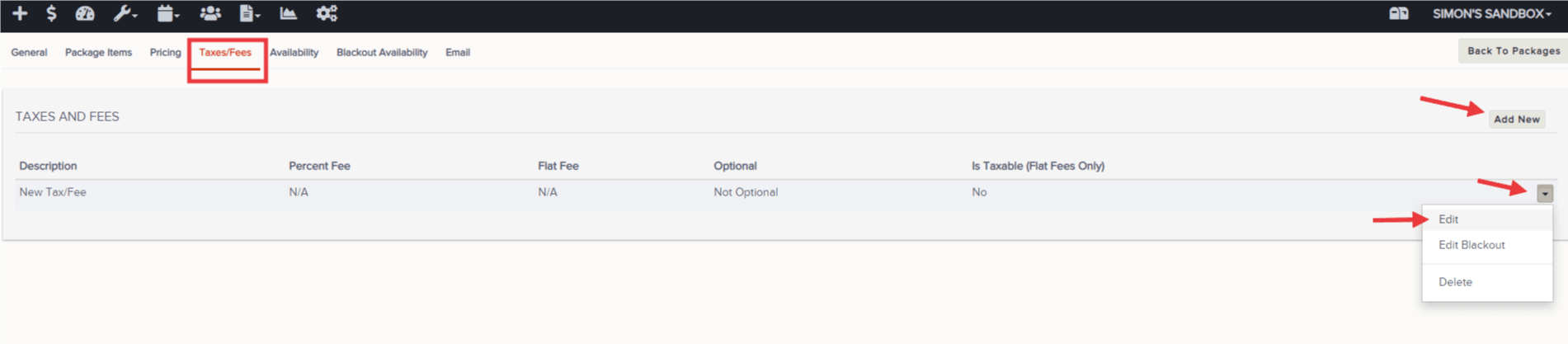
- Update any potential blackout dates using the Blackout Availability tab (see below)
- Lastly, update the email preferences for confirmation, reminder, and thank you emails to be automatically sent to customers who book this package on the front end
Note: the managing of the email templates is done in Setup > Email > Templates
You have successfully created a package!