If you would like to promote or sell gift cards on your website, first make sure you have already created Gift Cards within SETUP. For more information on creating Gift Cards, click here.
Once you have created your gift card and you're ready to sell them online, follow the steps below.
1. Go to Setup and select Web Integration under Front End/Web/API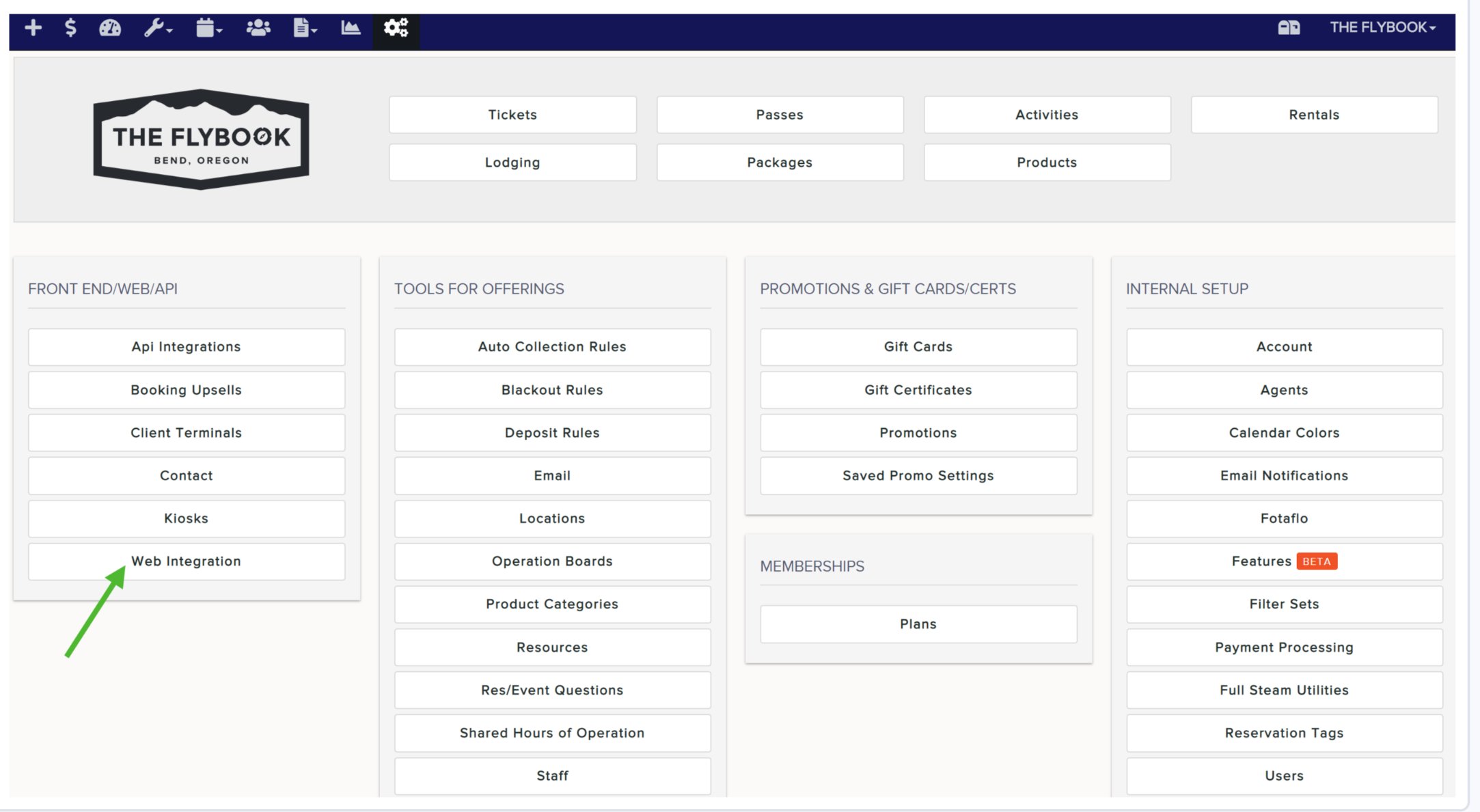
2. If you don't already have one and would like to create a separate category for Gift Cards, click on the Categories tab. If you've already created a category or don't want to create a new one, you can skip to step 3.
On the Categories tab, select Add New and then name the category (this will be visible to customers).
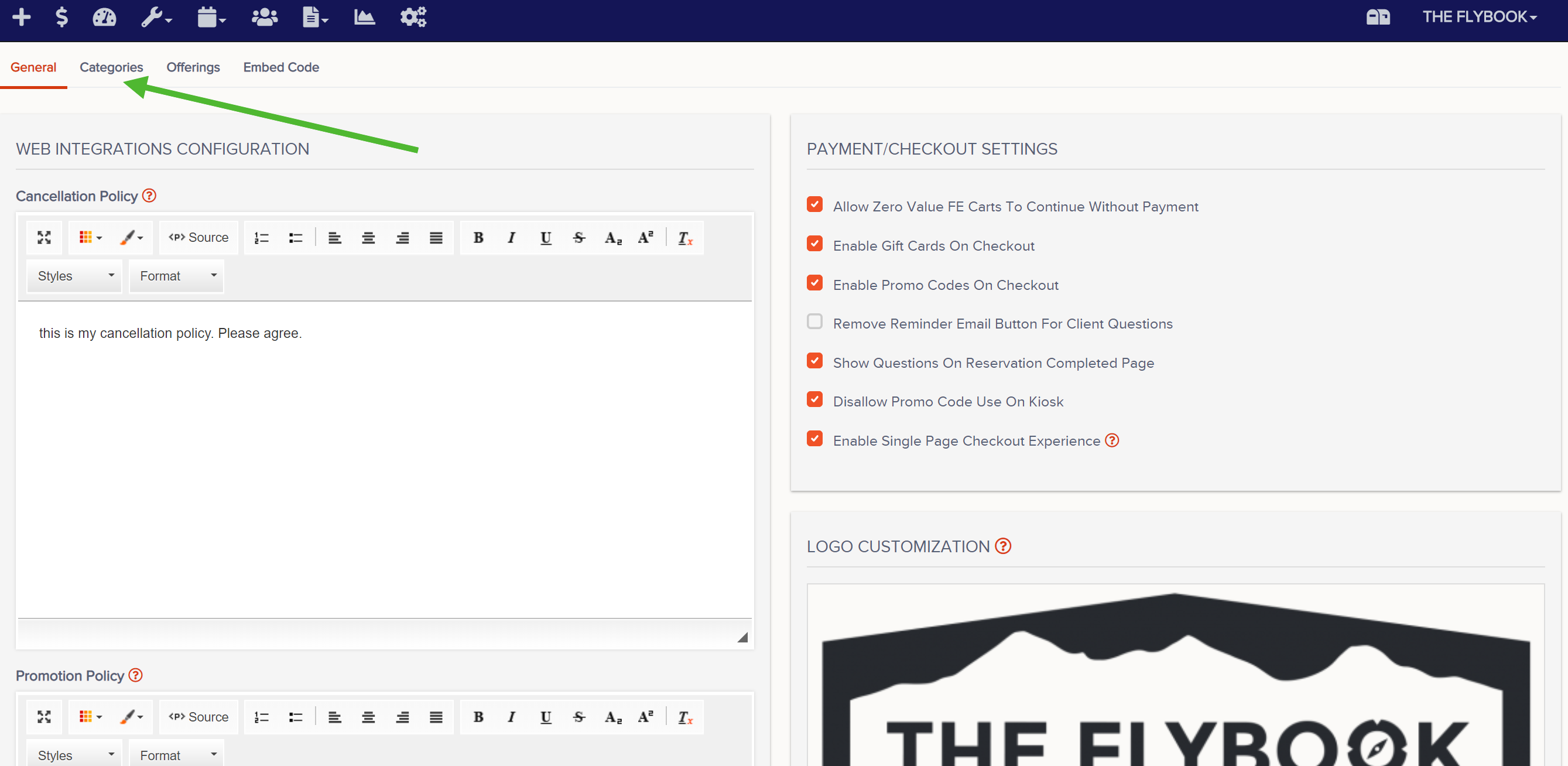


3. Now you'll go to the Offerings tab. Once on the Offerings tab, click Add New. Now you'll name the offering (customers will see this name) and click Create.


4. You'll then select the gift card name from your list of offerings.
There are lots of places to add information visible to customers during the purchasing process here, many of which are optional, but what is required is to select an Entity Type. This tells Flybook what item from your setup you are selling with this offering.
You'll likely want to set a category, on the right-hand side of the page for this offering.
Optional fields include a description, a short description (seen in the list view), altering the button text (ex. BUY NOW instead of BOOK NOW), a list view banner photo (recommended photo size: 1000 px wide by 500 px tall) and a banner photo (recommended photo size: 1200 px wide by 300 px tall).
You'll likely leave the Base Cost and Duration blank (these are for display only). Since gift card prices can vary you'll leave the base cost at $0, but don't worry, leaving it at $0 won't list your gift cards as $0, it'll just not show a cost until they select how much they want to buy a gift card for.
Make sure to select scroll down and click Save when you're done and then click Close.


5. If you already have a list view embed code button on your website, you should now see your gift card on your list view. If you'd like to create an embed code button just for the gift card, go to the Embed Code tab. On the right-hand side of the screen, select Generate Individual. Then click the name of the offering you're creating a button for. You'll then see the embed code in green text in a black box. You'll copy and paste that into the code of your website. When customers click the embed code button on your site, the booking widget will open on top of your website, making it seem to your customers that they've never left your website.


Important: If you're looking for a URL (which would open a new tab and have a Flybook URL), perhaps for email marketing or a social media post, click Use URL and copy the green URL in the black box. DO NOT use the URL you see when you click "Preview Widget Content In Full Screen". This is only meant to be a preview and not for live bookings. Using this URL will cause issues.

