Navigation: Setup > Emails > Templates
Important Note: When testing this functionality, the link to the waivers will only work when it's sent from an existing reservation that has an event related to a waiver. Using the "Send Sample" link in the email template setup will not function.
If you would like to customize the confirmation email to include an additional link to either the client terminal or waiver signing, please follow the steps below:
- Go to Setup then click Emails
- Click on Templates and either "Add New" or click on an existing template
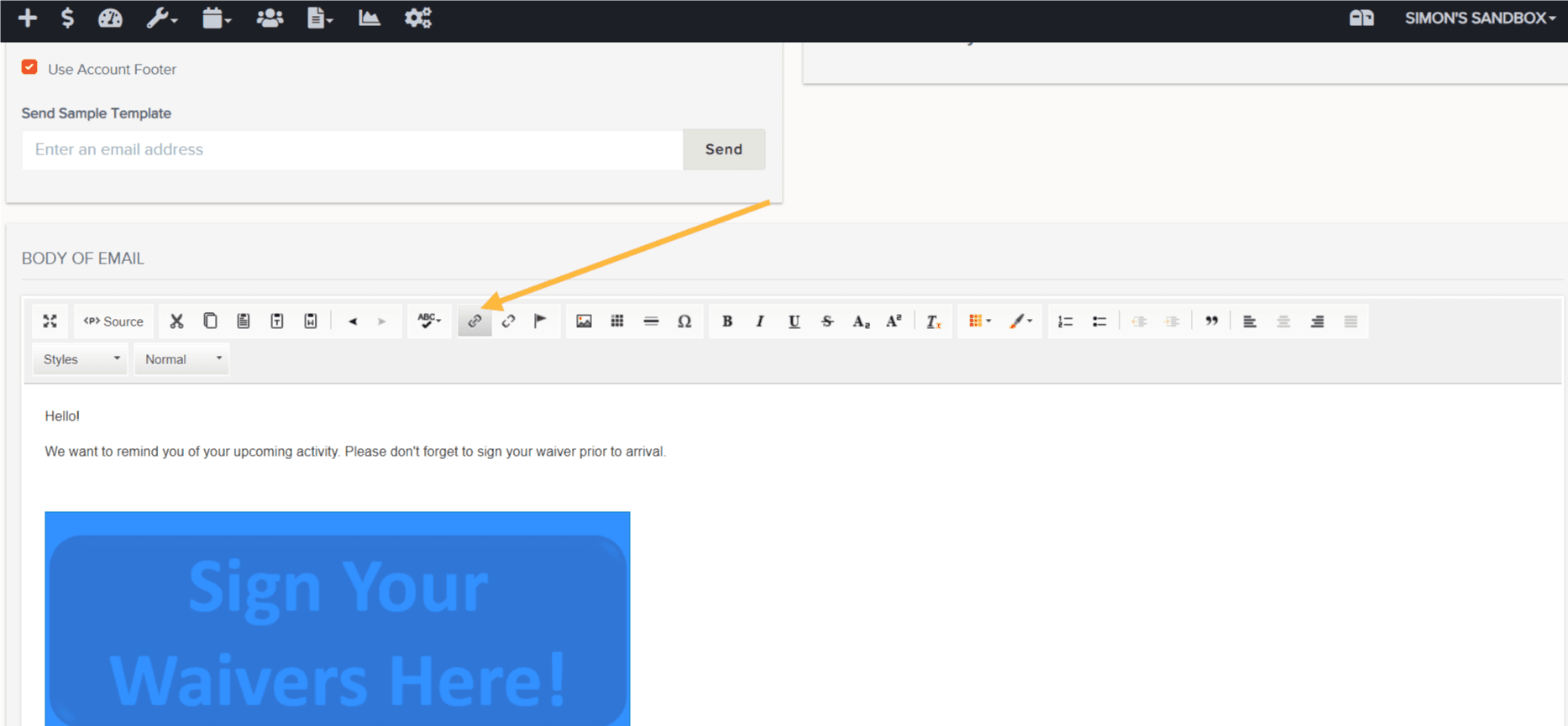
- This will take you to the Template creation/edit screen. From here, you can update your Text or Image with a dynamic Hyperlink that will take end users to either the Client Terminal main page or the Sign your Waivers tab.
- Write the text (or create an image) for example: SIGN YOUR WAIVERS HERE!!!
- Select that text or image and in the editor select the "hyperlink" icon
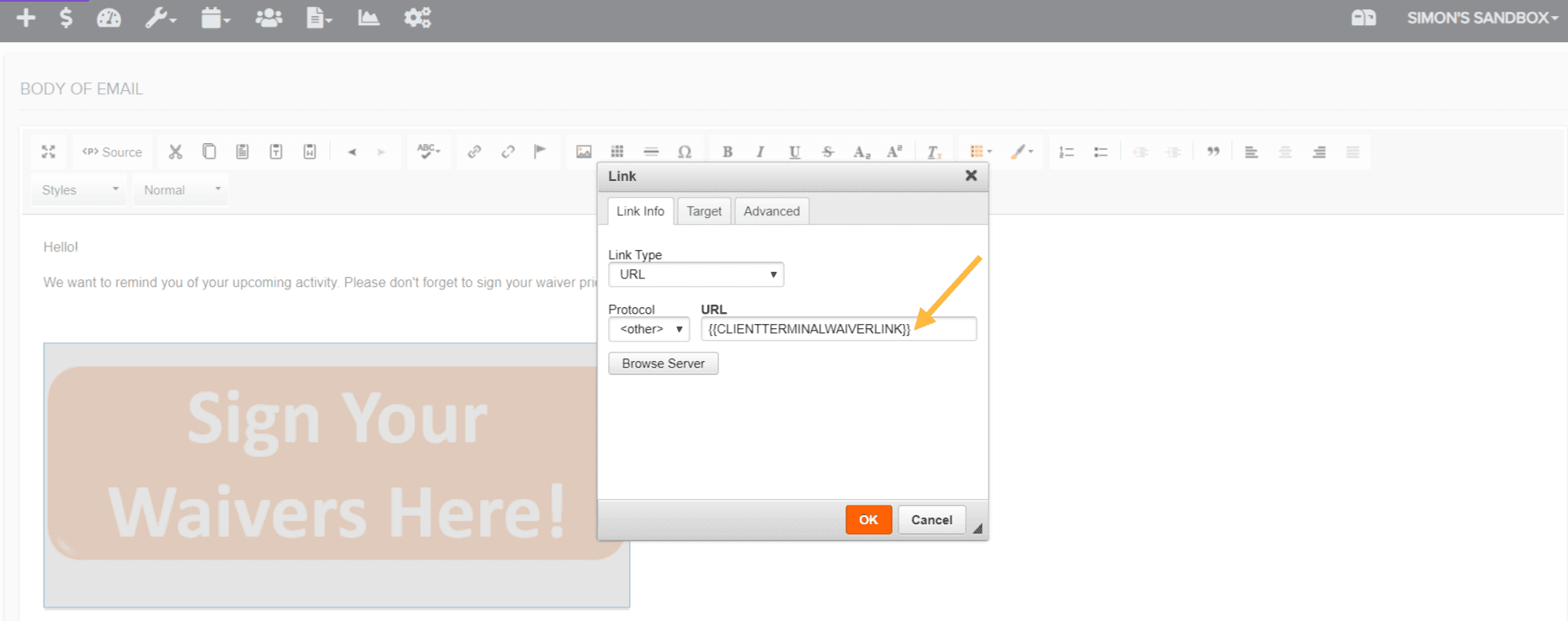
- In the URL - use one of the variables below. Be sure to copy and paste it exactly!
Waiver Tab
{{CLIENTTERMINALWAIVERLINK}}
Client Terminal
{{CLIENTTERMINALLINK}}
- Be sure to verify links are working by sending a test email to yourself.



NOTE: These dynamic links only work in confirmation emails. They will not work in Reminder emails.