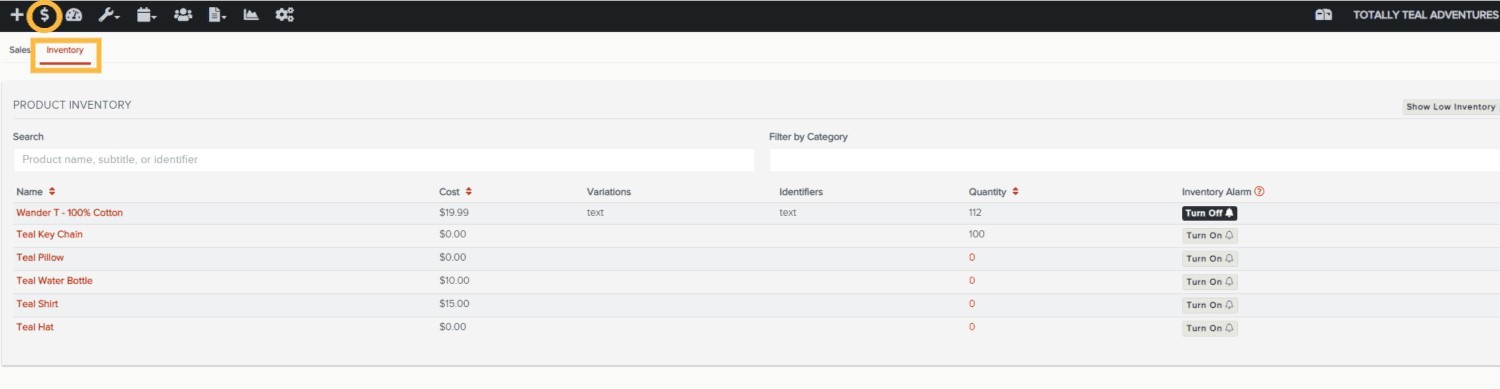
Navigation: Point Of Sale>>Inventory
To manage your inventory for the Point Of Sale system follow the steps below
- Go to the Inventory tab in your POS system
- All existing products you added under your product tab appear here
- From this tab you will be able to view:
- Name
- Cost
- Variations
- Identifiers
- Quantity
- Inventory Alarm
- To modify, click the name of the product you want to modify
- Admins will be able to modify these parameters on the Inventory tab of the Edit Product screen:
- Add and Remove inventory (including Cost Per Unit when adding)
- Track Inventory
- Warn about low inventory: Set quantity (Admins can setup who receives this warning in Setup>Email Notifications)
- Add identifiers to the product such as tags or Barcodes (scanner can be used to input)
- Once all changes are made to inventory click the Close button to return to the Inventory screen.