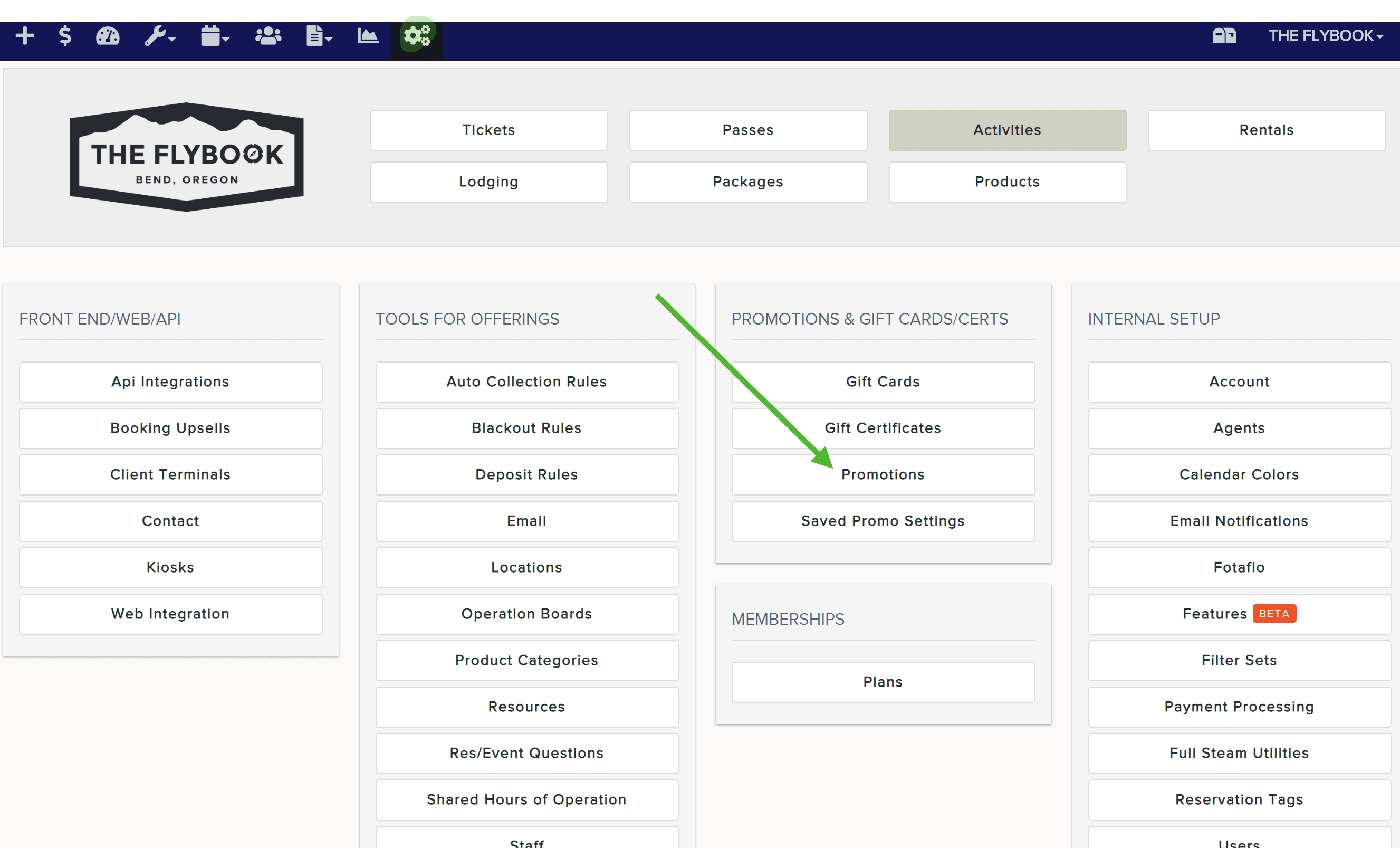
Navigation: Setup>>Promotions
If you would like to create a promotion configuration follow the steps below.
Important Note: A promotion configuration is the first step in creating a usable promotion code. Once created you will still need to create the actual codes in step 2. In this step you will define what event(s) you want the promo to apply to and when, also what type of discount you want to give. Multiple promo codes can use the same promo config so you don't need to create a new promo config each time you want to make a new promo code.
- Go to Setup and then select Promotions under Promotions & Gift Cards/Certs
- From the Action dropdown, select Add New. You'll then name the promo config and click Create.

- From here you will be brought to the General tab of the Promo Config setup and be able to edit these parameters
- General Info
- Name
- Inactive (This will hide the promo config from any drop-down pick lists, but will not remove it from any existing promotions)
- Pricing Details
- Applies to Fees (This setting will also apply the discount to any related fees associated with the selected configuration(s))
- Percentage Discount
- Fixed Cost Discount (Important to note: that a single use of a promo code applies to a single item in the cart, not the invoice total. So, if you have two tickets in your cart that each cost $50 and you apply one fixed cost promo code that can take $60 off, the promo code will bring the cost of one of those tickets down to $0 but the other ticket will remain at its original cost of $50.)
- Misc
- BE Warning Message Upon Application: (This message will appear anytime this promo is applied from the BACK END this is especially useful if you want to remind your staff to do something like "Check ID" for something season passes, military discount, etc)

- BE Warning Message Upon Application: (This message will appear anytime this promo is applied from the BACK END this is especially useful if you want to remind your staff to do something like "Check ID" for something season passes, military discount, etc)
- General Info
- After you've completed everything on the General Tab, you'll then move on to the Applications tab. This is where you pick what items you want the promotion to apply to and under what conditions.
- Applies to everything in cart - Use this setting when you want to have promo codes created with this config apply to anything you offer
- Max Number Of Items This Promotion Can Apply To Per Reservation - This setting allows you to set the max number of items of this type that promos created with this config can apply to within one reservation
- Min Number Of Items That Must Be In Cart For This Promo To Apply - This setting allows you to set the minimum number of items of this type that must be in the cart for promos created using this config to apply to a reservation
- Max Number Of Items That Can Be In Cart For This Promo To Apply - This setting allows you to set the max number of items of this type that can be in the cart for promos created using this config to apply to a reservation.

- Always remember to scroll down to the bottom and Save your changes.