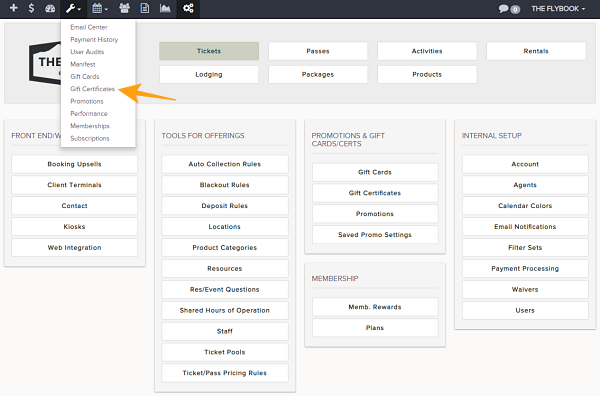
Navigation: Tools>>Gift Certificates
If you would like to purchase a gift certificate from the BE or view already purchased gift certificates follow the steps below.
- Go To Tools then click on Gift Certificates
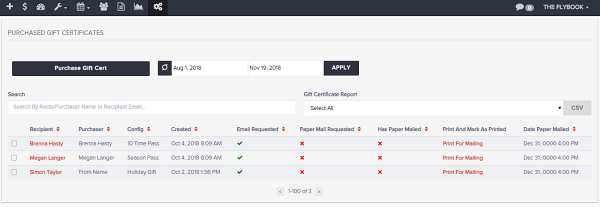
- Select the date range and apply
- These filters are available
- Search
- These functions are available
- Gift Certificate Report filter on
- Select All
- Deselect All
- Requested to be mailed
- Non Yet Mailed
- Already Mailed
- Gift Certificate Report filter on
- This will display these parameters
- Recipient
- Purchaser
- Config
- Created
- Email Requested
- Paper Mail Requested
- Has Paper Mailed
- Print And Mark As Printed
- Date Paper Mailed
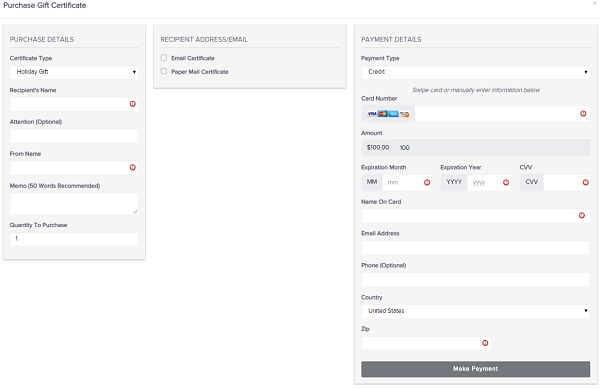
- If you would like to make a back end purchase of a gift card click Purchase Gift Cert
- From here you will be able to modify these details
- Certificate Type
- Recipient's Name
- Attention (Optional)
- From Name
- Memo (50 Words Max Recommended)
- Quantity To Purchase
- Recipient Address/Email
- Paper Mail Certificate
- Payment Details (Note- If "Allow Backend Users to Override Cost" is selected in the Gift Certificate Config, you can modify the price of the certificate being sold here)
- Once the above variables are correct click Make Payment
- If payment successfully processes a receipt and gift certificate will be issued.