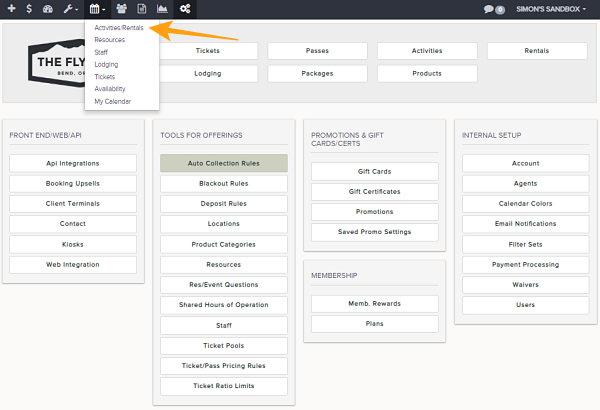
Navigation: Calendar>>Activities/Rentals
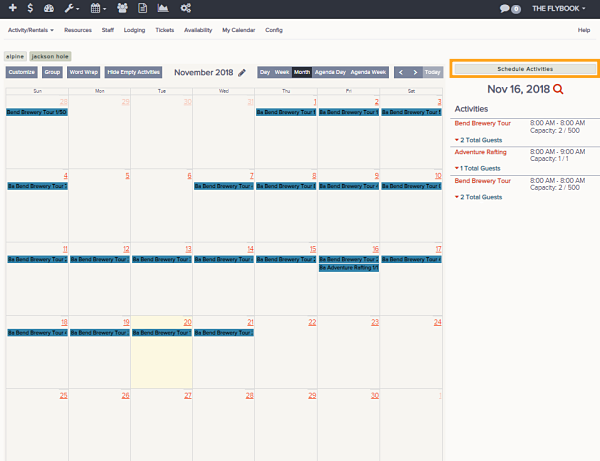
If you would like to view your activities and rentals in a calendar view follow the steps below
- Click on Calendar then on Activities/Rentals
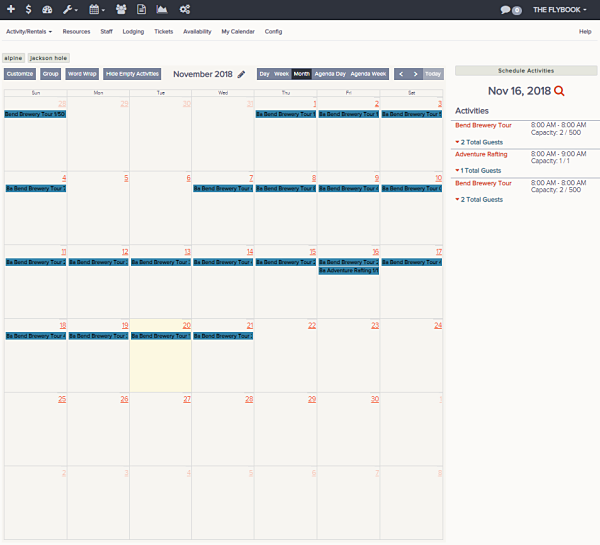
- This will show by default the month view of your Activities and Rentals
- You can adjust the range you want to view by these choices
- Day
- Week
- Month
- Agenda Day (Shows a hourly breakdown of the day)
- Agenda Week (Shows a hourly breakdown of the week)
- Today
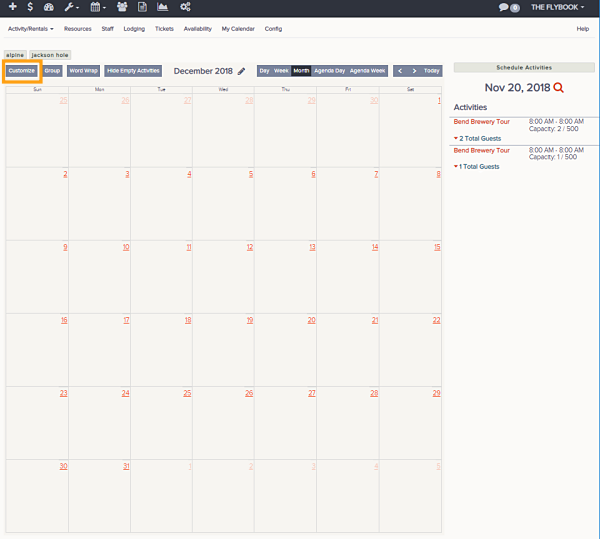
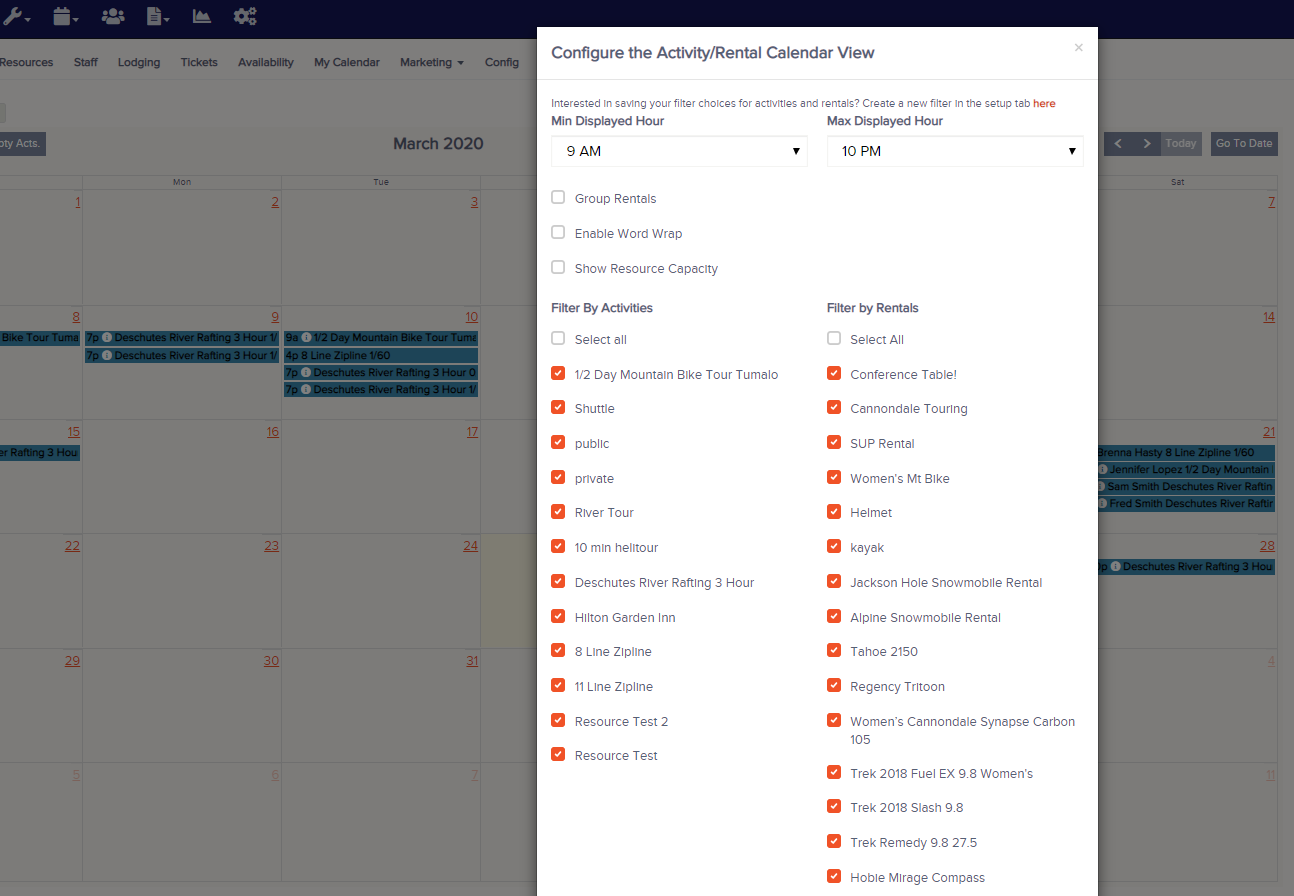
- Customize the filters by clicking Customize button, you can filter by these parameters. Once selection is completed click Close Filters to apply
- Activities
- Rentals
- Display
- Min Displayed Hour
- Max Displayed Hour
- Show Resource Capacity
- These Functions are also available
- Group
- Word Wrap (This will show wrapped names)
- Hide Empty Activities (This will hide any empty activities only showing activities with at least 1 person scheduled)
- By clicking on a single date you can see a list view of the that days events including this info
- Event Start
- Event End
- Capacity
- Total Quest Count
- Guest List (by clicking the down arrow)
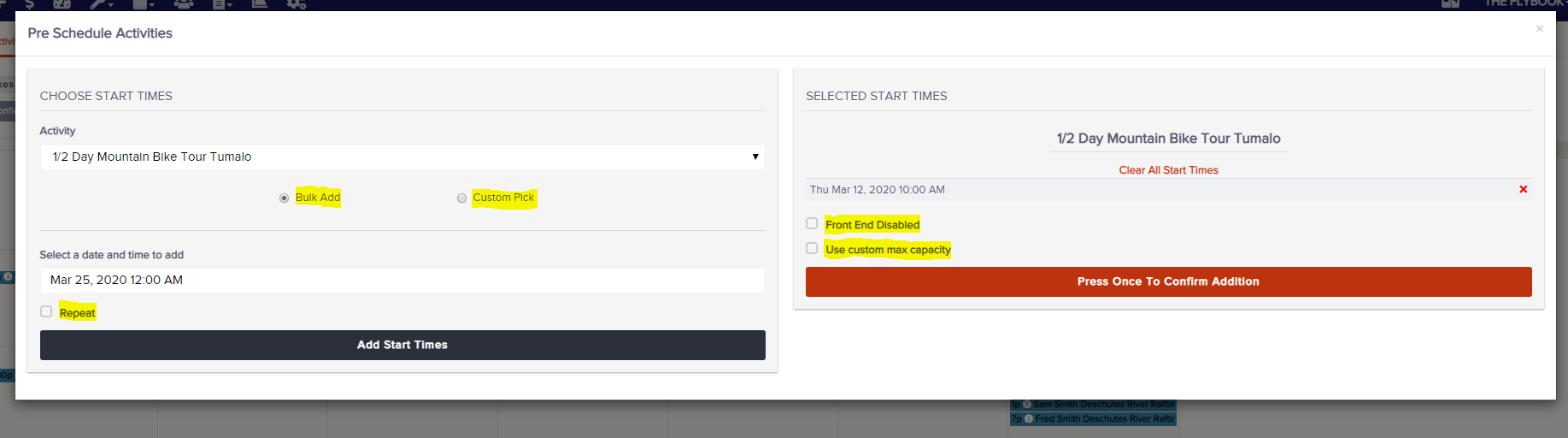
- From this view you can also Pre-schedule (Pre-scheduled activities come with no resources and no staff assigned) activities by clicking the Schedule Activities button you will have 2 methods to enter this information. After adding start times by either method, you can choose to disable it from the front end and/or set a custom max capacity.
- Bulk Add
- Event Configuration
- Date
- Repeated
- Custom Pick
- Start Time(s)
- Date
- Bulk Add