Navigation: Calendar>>Staff
If you would like to view your Staff or create a reservation from the Staff calendar follow the steps below.
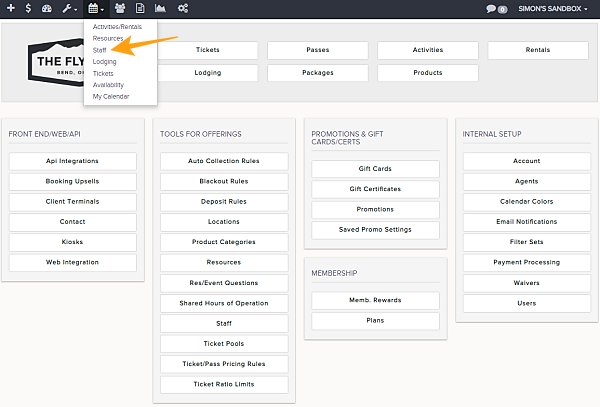
- Go to Calendar then to Staff
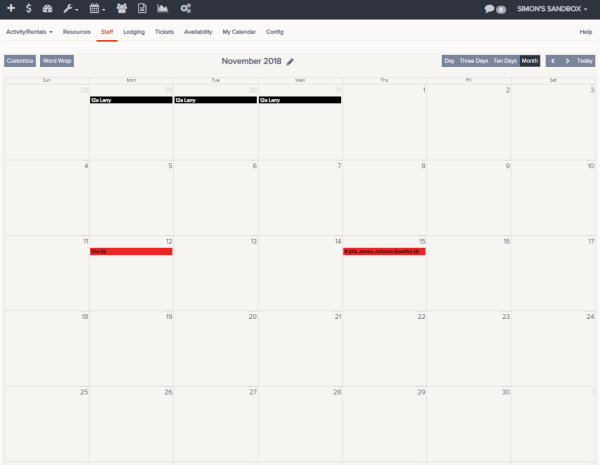
- This will take you to the default Month view
- You can adjust range you want to view by these choices
- Month
- Ten Days
- Three Days
- Day
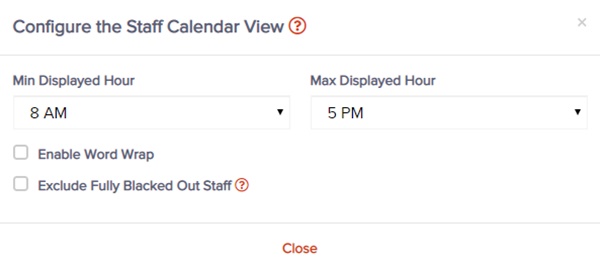
- Customize the filters by clicking Customize button, you can filter by these parameters. Once selection is completed click Done Customizing
- Min Displayed Hour
- Max Displayed Hour
- Enable Word Wrap
- (New)Exclude Fully Blacked Out Staff (This option will remove any staff that have a continuous blackout time period that covers the entire view. This largely only effects the day view)
- These Functions are also available
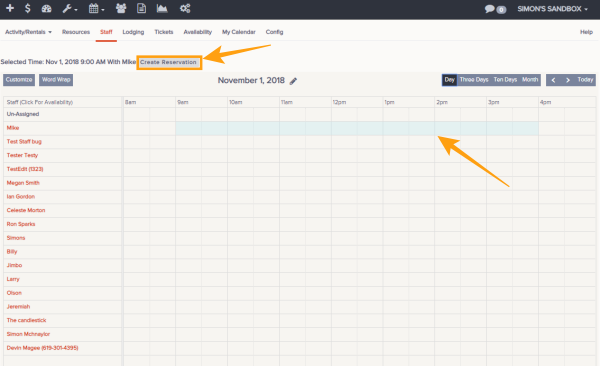
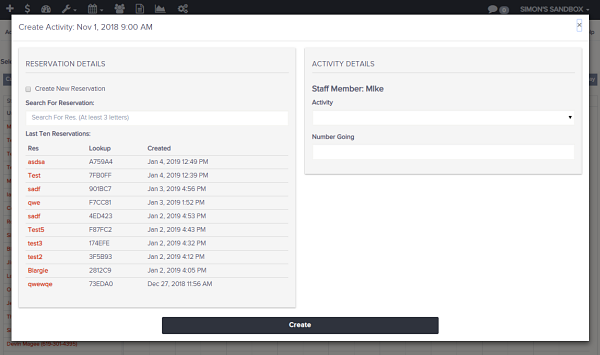
- Create Reservation (You can create a reservation by clicking and dragging on the three day and day)
- Search For Reservation:
- Last Ten Reservations
- Rental Details
- Rental Config
- Start Time
- Create Reservation (You can create a reservation by clicking and dragging on the three day and day)
- Once all parameters are correct click Create and new item will appear on resource calendar.