The Agent feature in Flybook allows you to allow a 3rd party to book reservations in your system and earn a commission. Below are the steps involved in creating agents in Flybook.
- Creating the Agent
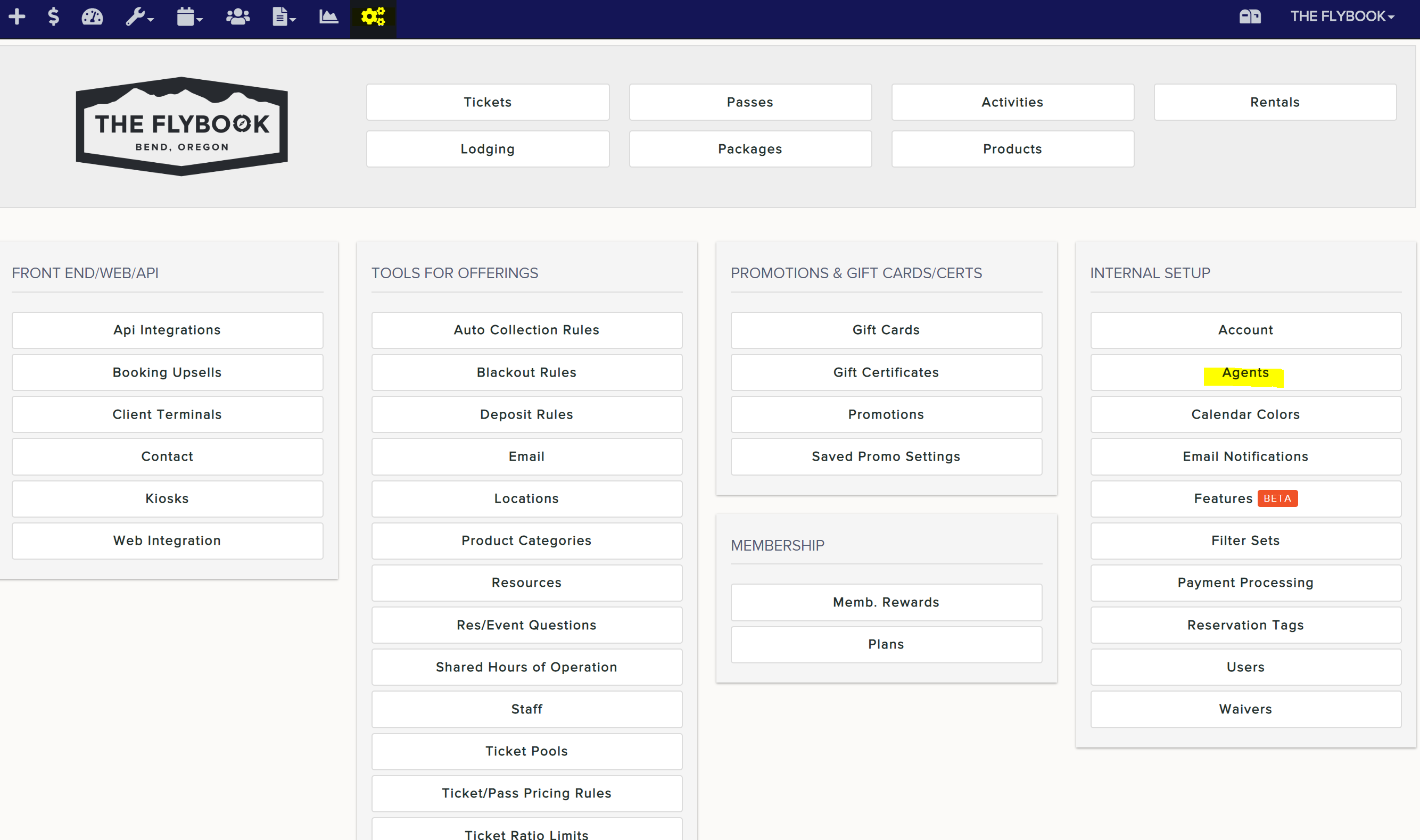
- Go to Setup and on the right-hand side under Internal Setup select Agents.
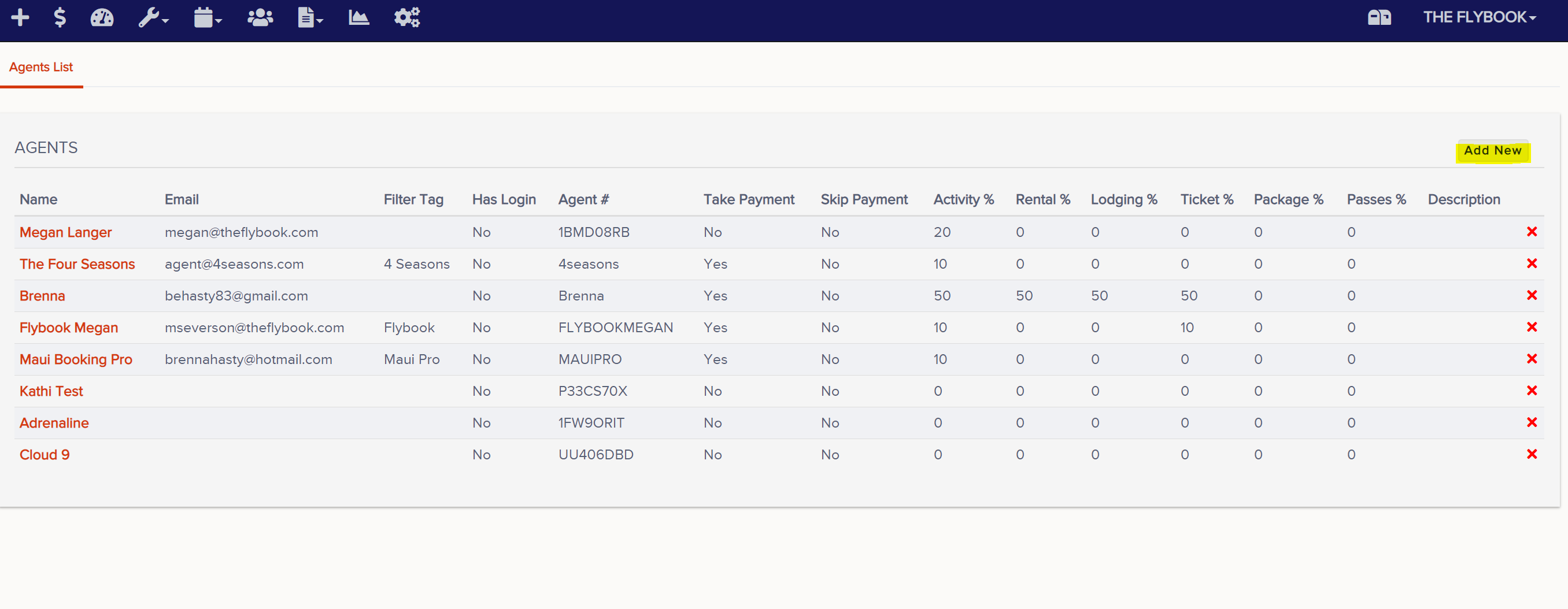
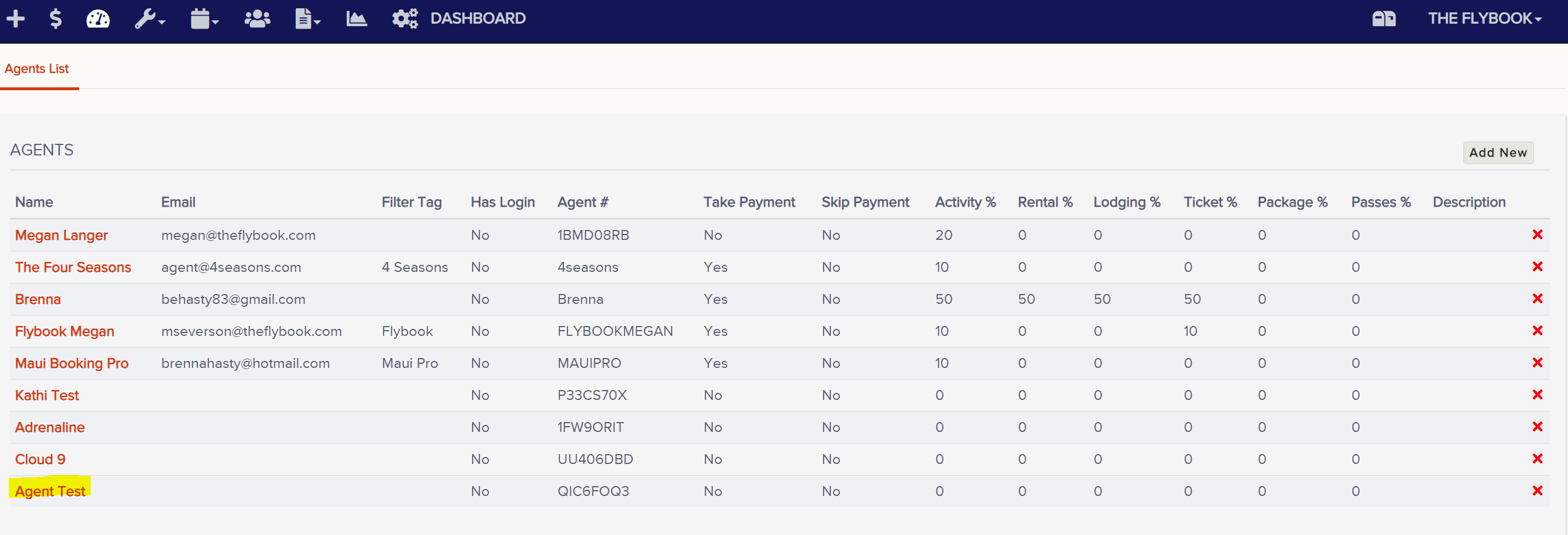
- In the top right-hand corner, click Add New and enter the agent's name. You'll then see the agent's name appear on your list of agents. Click on the name of the agent you just created.

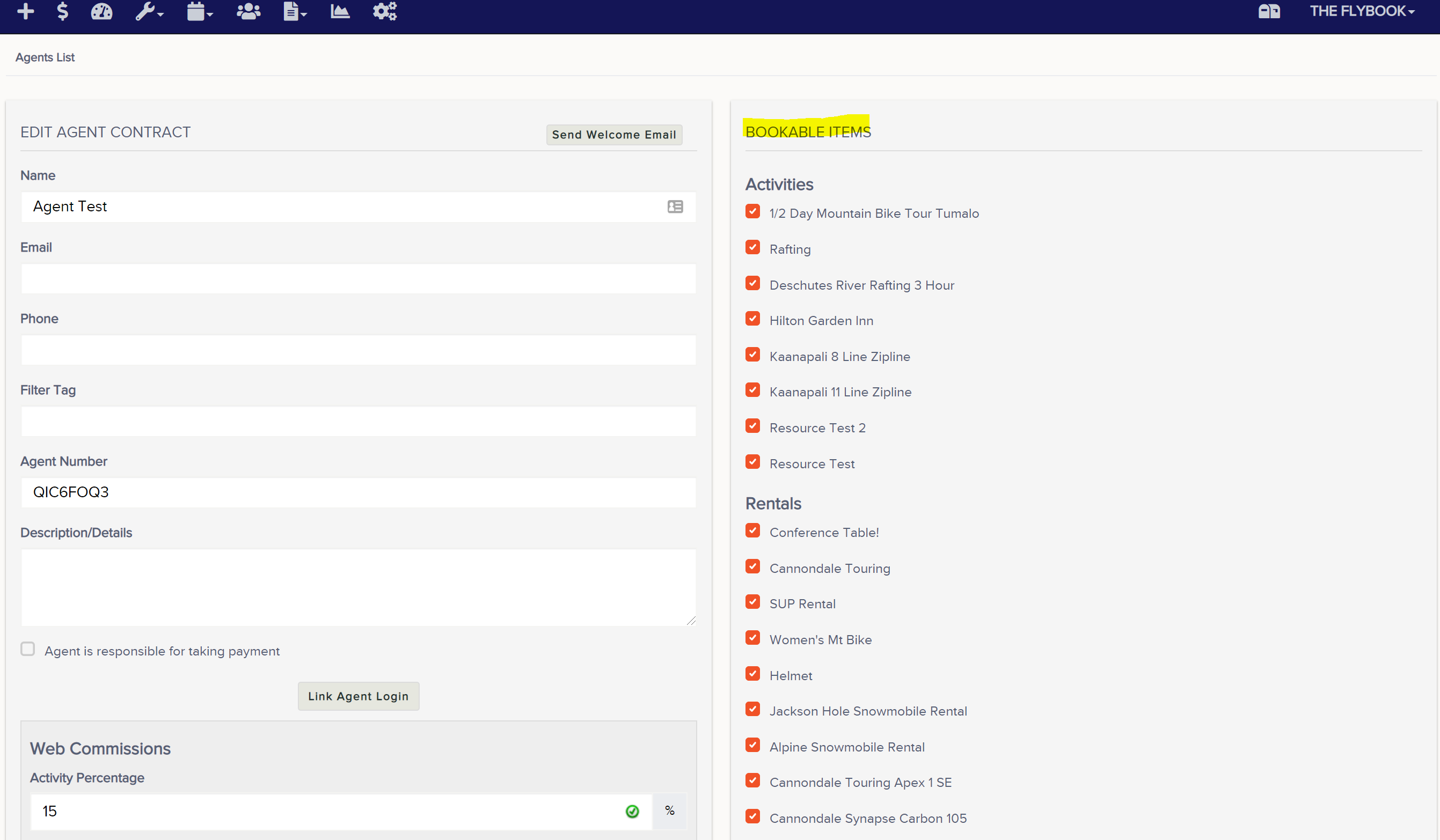
- Enter an email address and phone number for the agent.
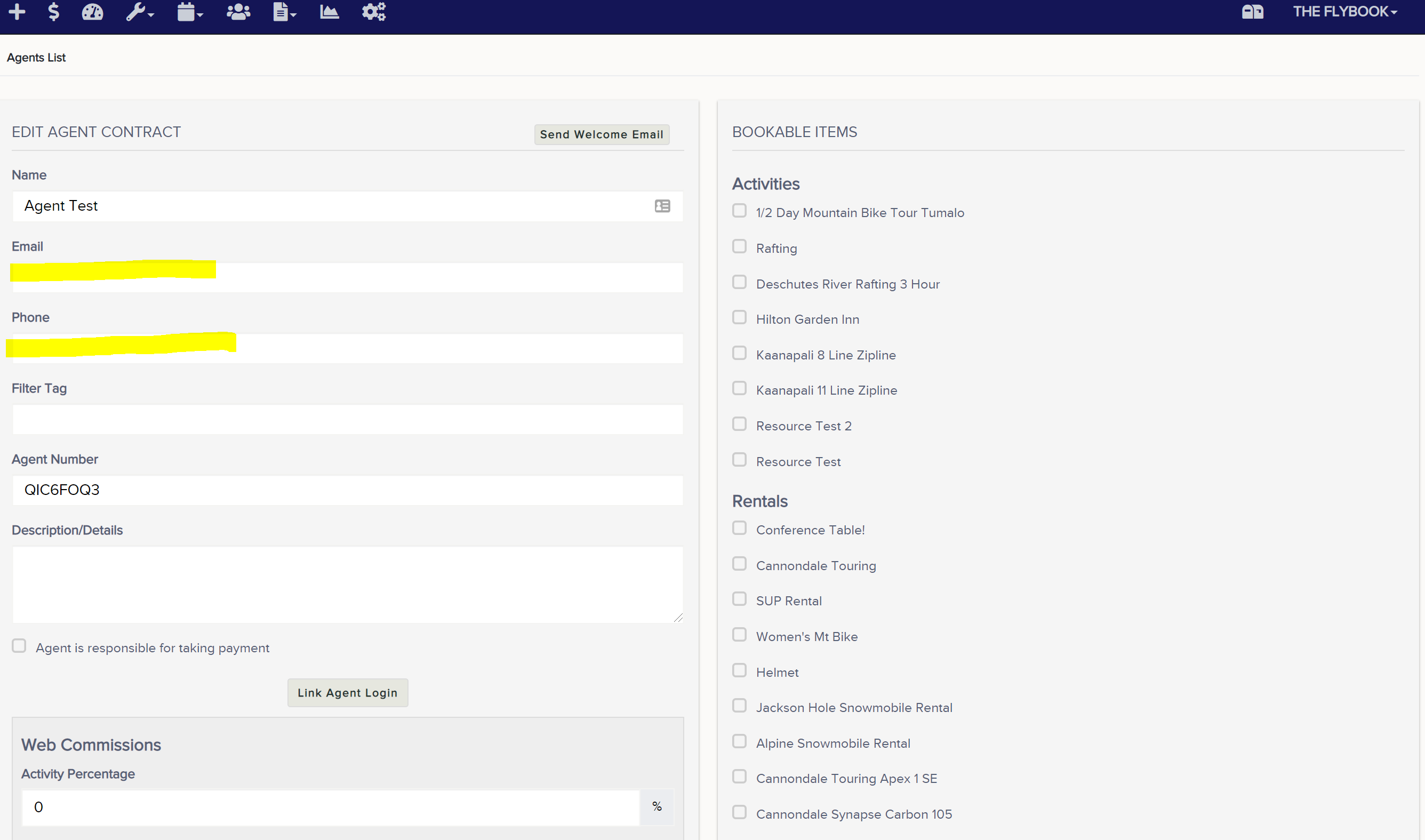
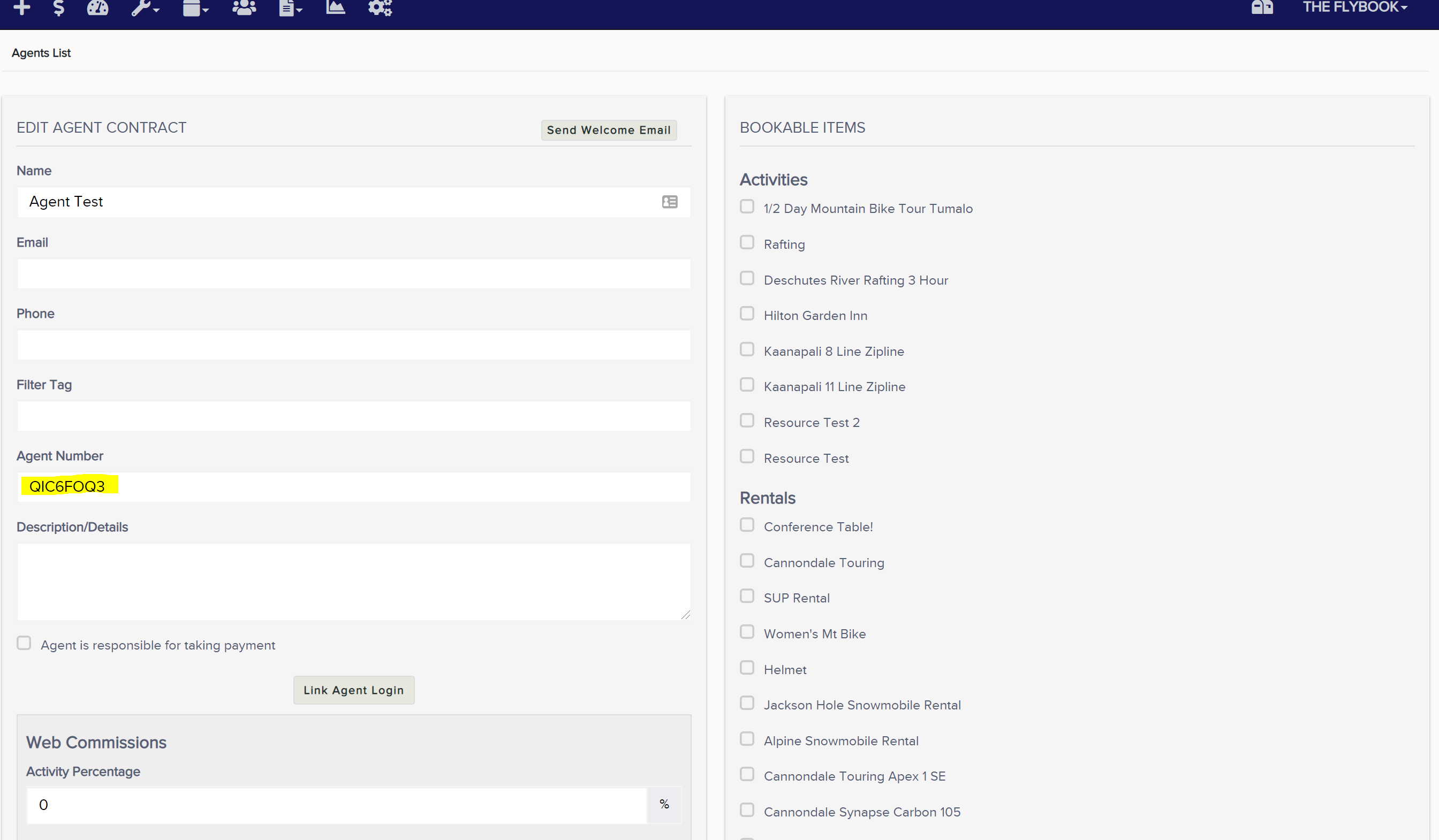
- An Agent Number, which the agent will need need to enter each time they go to book a reservation, will be automatically created for the agent. You can edit this to be something easier for the agent to remember or you can leave it as the automatically generated agent number.
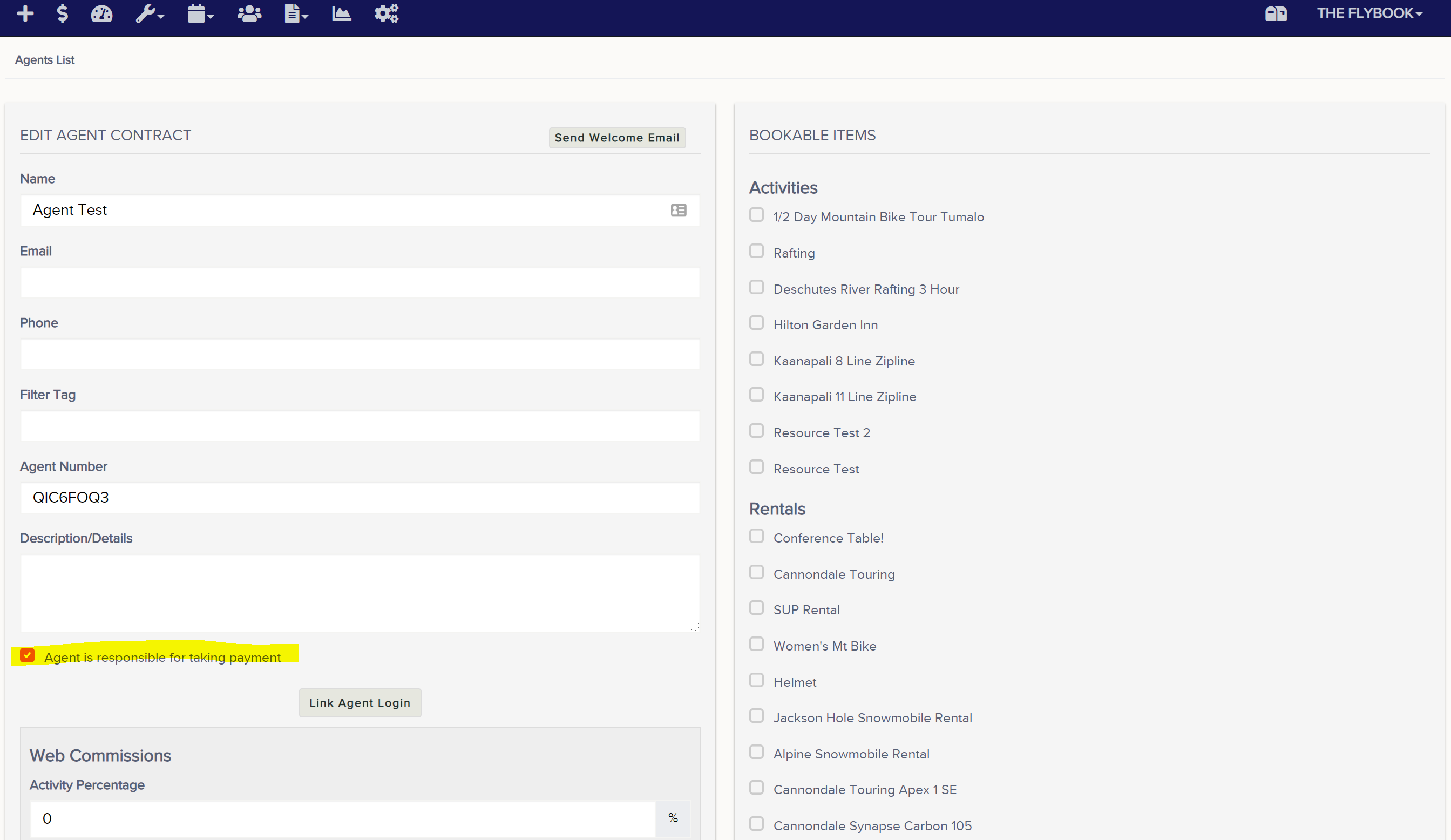
- If the checkbox that says "Agent is responsible for taking payment" is checked, that means that the agent is responsible for taking payment outside of Flybook, in their own system, and then later will pay your company the cost of the reservation minus their commission.
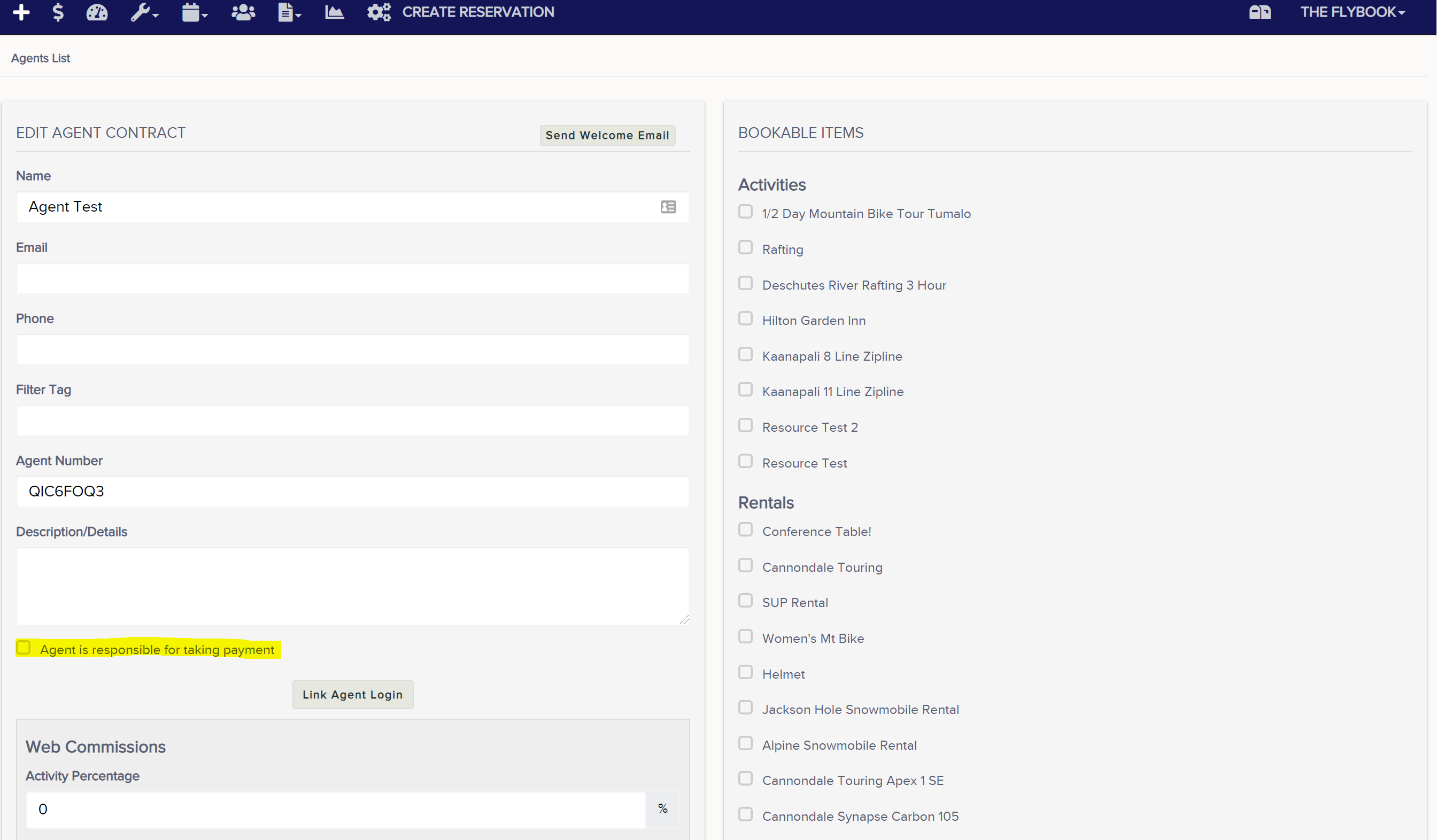
- If the checkbox that says "Agent is responsible for taking payment" is not checked, that means that the agent will still take a payment, but the payment will be taken in Flybook and then later you will pay out the commission to the agent.
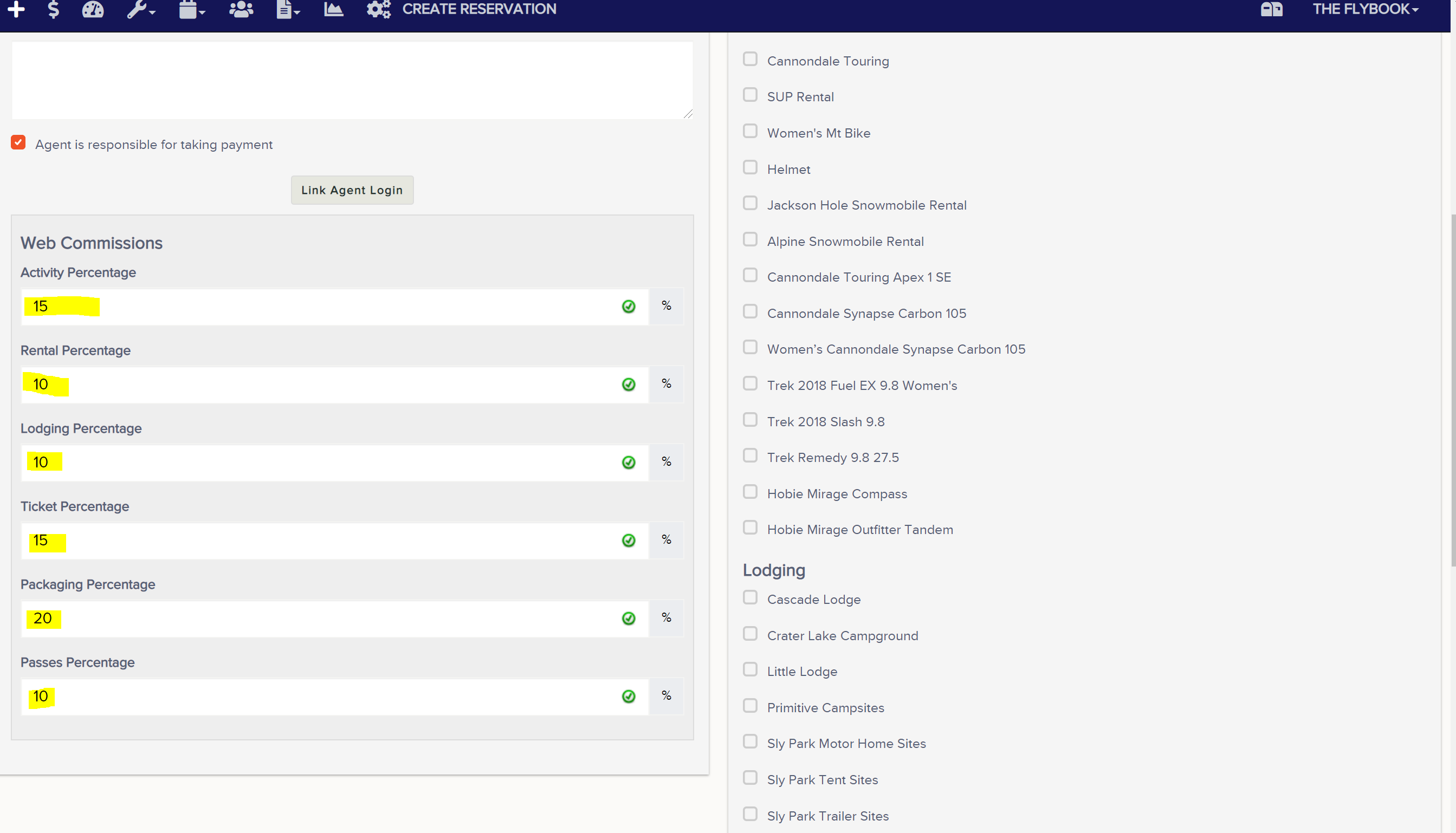
- Set the percent commission rates for the agent.
- On the right-hand side, select which items the agent can receive a commission for. Since agents book on the front end just as a customer would, they'll still be able to book anything, even if it's not selected as a Bookable Item, they just won't receive a commission for it.
- Scroll down to the bottom and click Save
- Go to Setup and on the right-hand side under Internal Setup select Agents.
- Agent Welcome Email
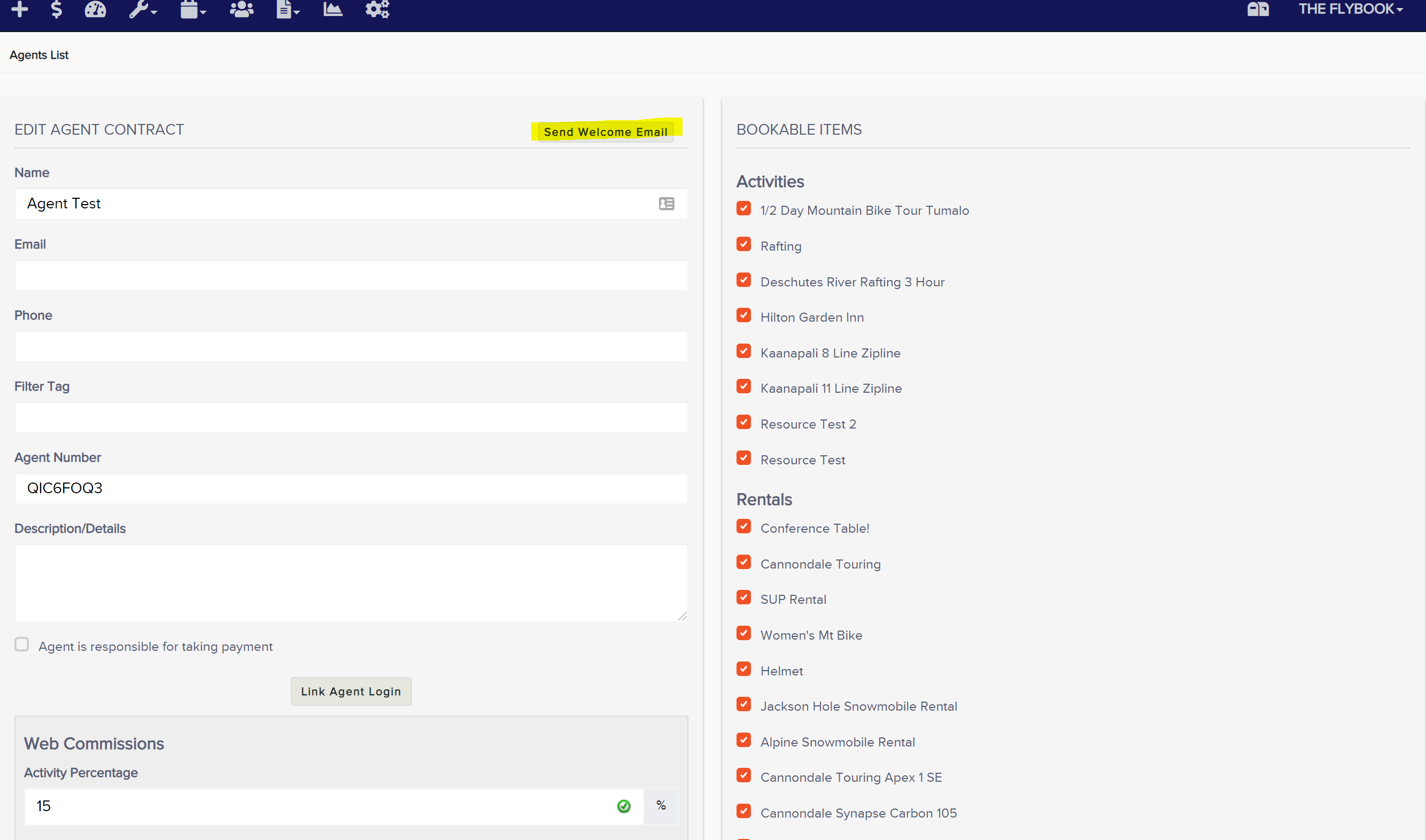
- Click Send Welcome Email. This will send an email to the agent that will give them their agent number.
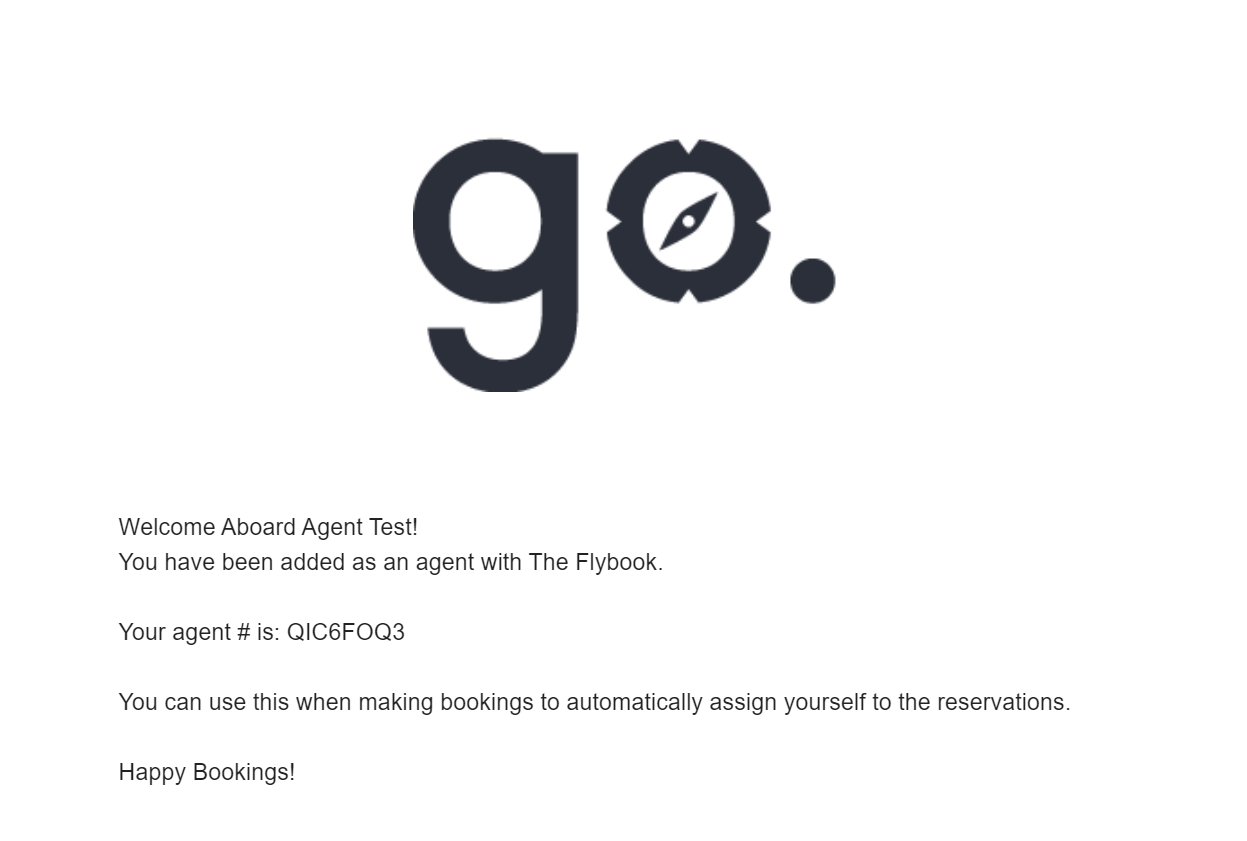
- Here's an example of what that welcome email looks like.
- Click Send Welcome Email. This will send an email to the agent that will give them their agent number.
- Showing the agent how to book a reservation
- The agent books reservations from your website, just as one of your customers would but before clicking the Complete Transaction button, there will be a little red line that says "Are you an agent?" The agent will click that link and then enter in their agent number.
- The agent books reservations from your website, just as one of your customers would but before clicking the Complete Transaction button, there will be a little red line that says "Are you an agent?" The agent will click that link and then enter in their agent number.
- Tracking Commissions
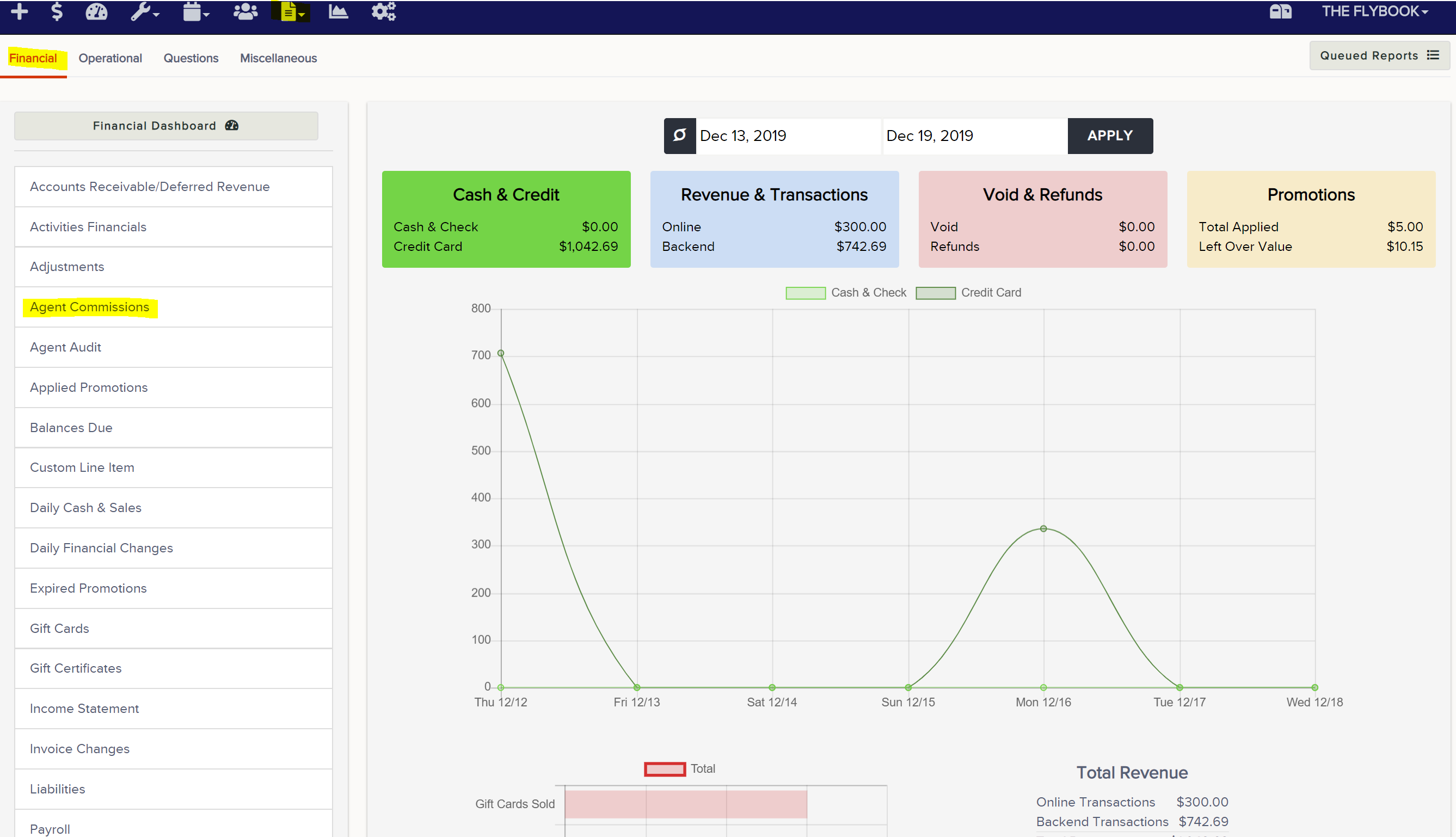
- To determine how much commission is owed, you're going to go to Reports, select Financial Reports and then select the Agent Commissions Report.
- Then you'll enter the date range that you want to run the report for and open the filters by clicking the filter icon to the left of the date range. If you want to pay out commissions after the reservation is complete, you'll want to make sure that the Query Dates By filter is set to Reservation Latest Event. If you had the agent take payment in Flybook, you'll want to make sure the Payment Type filter is set to Owed to Agent. If you had the agent take payment outside of Flybook in their own system, you'll want to make sure that you have the Payment Type filter set to Owed to Company.
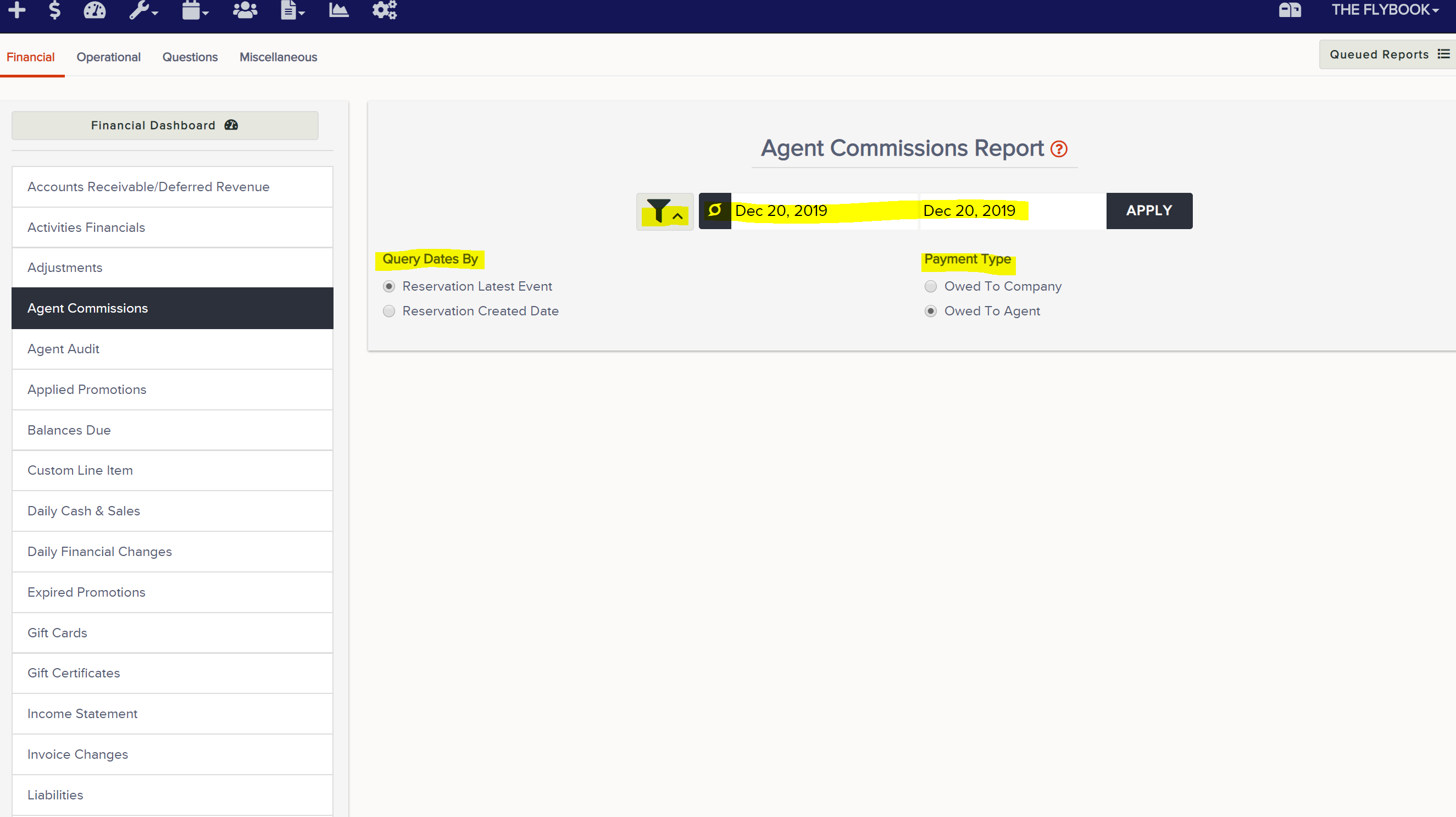
- Here's an example of what the report will look like based on the settings in the above screenshot.

- You'll notice on that report, it lists calculated commission and actual commission. This is because you can manually override the calculated commission for a particular reservation if you'd like to. Below is a demo video on how you can manually override the calculated commission.
- Now, if I rerun that same Agent Commissions Report, you'll see that the calculated commission and the actual commission are different and column H (Was Manually Set) says yes now instead of no.

- To determine how much commission is owed, you're going to go to Reports, select Financial Reports and then select the Agent Commissions Report.