To pause front-end bookings and/or gather customer interest in a particular offering, follow these steps:
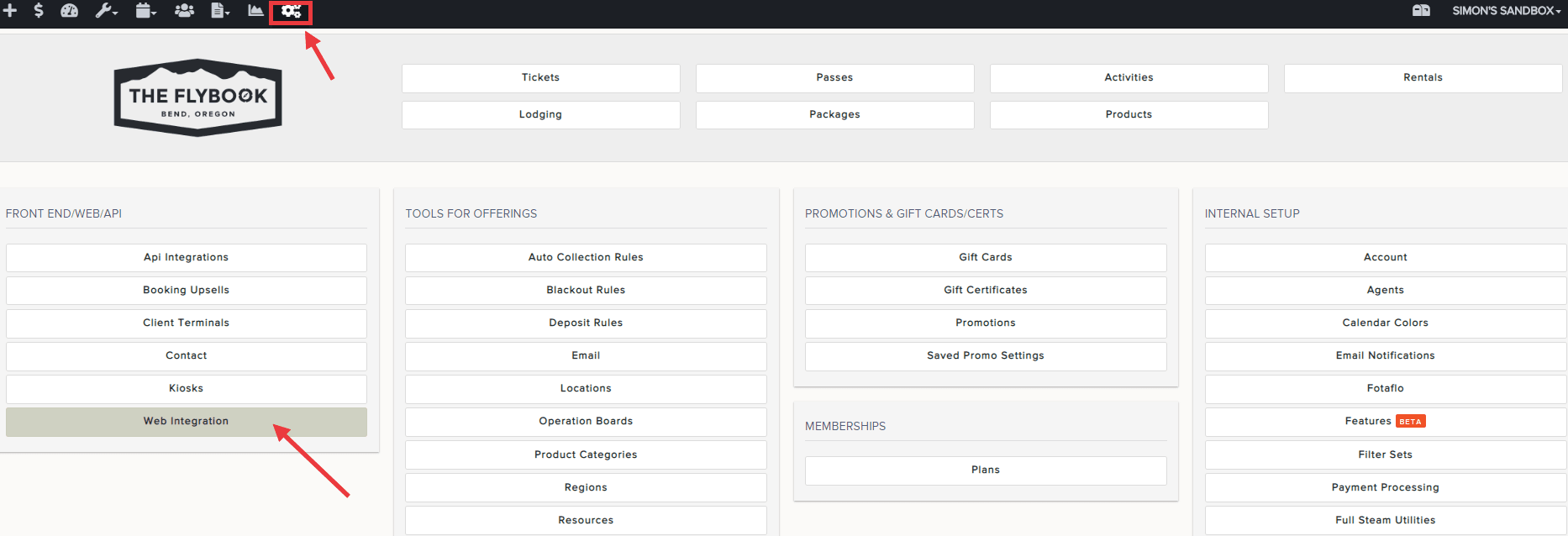
- Go to SETUP > Web Integration (under FRONT END/WEB/API)
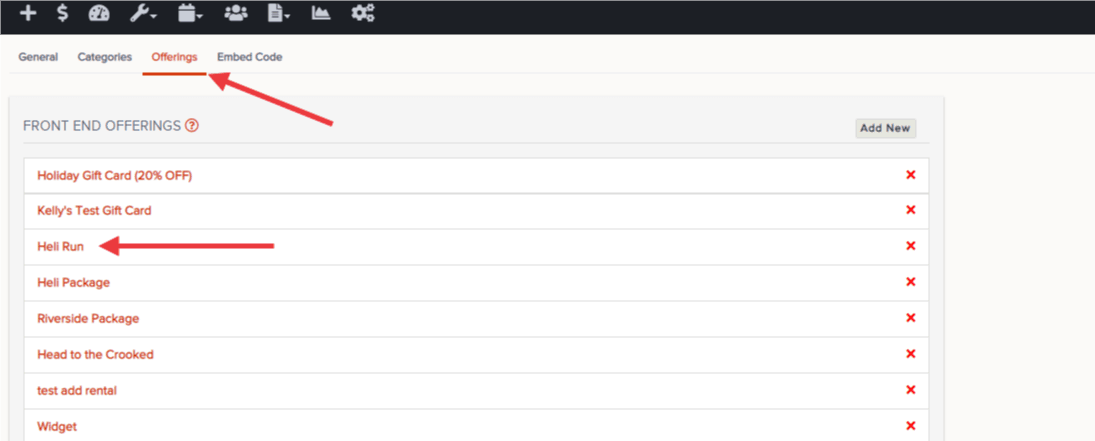
- Select Offerings
- Pick an offering
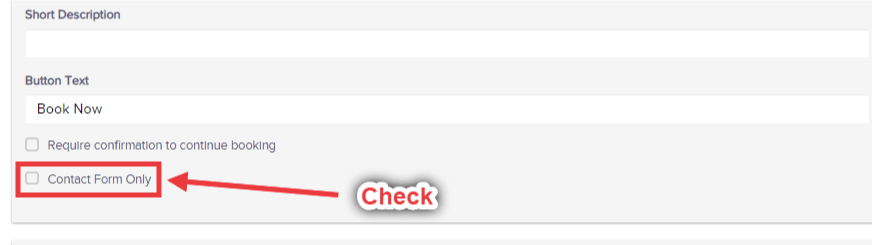
- Check the box marked "Contact Form Only"
- Optional: add a question to have customers answer the additional question(s) with the contact form on the front end
- Optional: (if CRM is 'on') funnel contact form answers to a CRM by adding in a CRM Pipeline
- Click Save
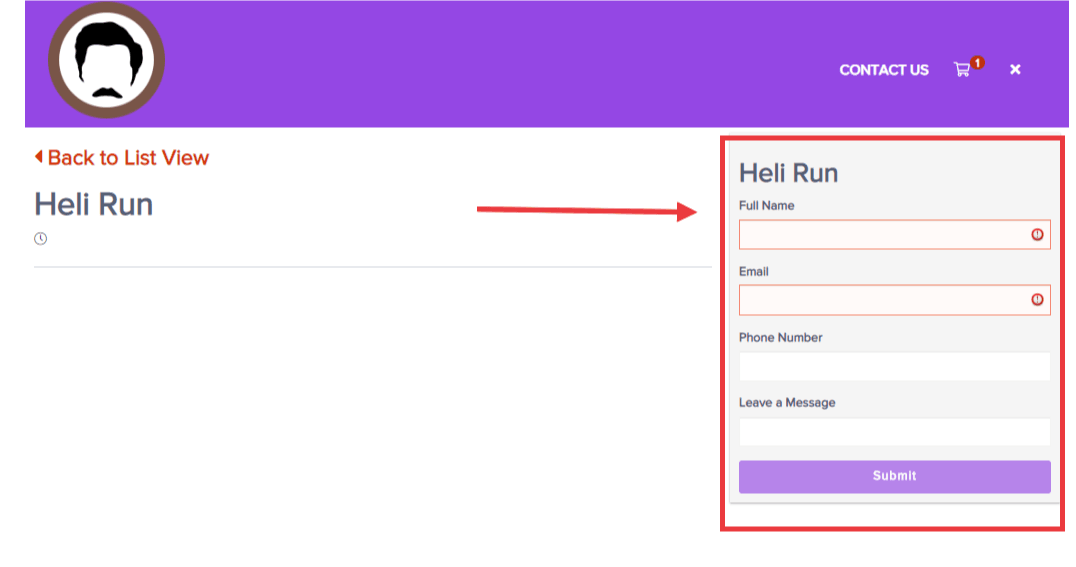
Instead of having the ability to add a specific date/time, number of people, etc., visitors will now be required to enter info like name, email, phone, and message (see below).
This will go a long way in being able to recover who/when customers showed interest in booking such offerings. Additionally, now you have their name and email to be able to reach back out to them when the time is right.
- Note: once filled out, these inquiries can be seen in up to 3 places:
1. You will automatically see it in your Dashboard for a rolling 3 days (see below)
2. Optional: CRM pipelines
3. Optional: add yourself to be notified via email whenever a form is filled out. Do this by going to Setup > Email Notifications > Select "Inquiry Contact Form Sent" from the dropdown. Pick your name from Flybook users or add an "extra recipient"
Here is a quick video showing you how to add this contact form in place of the front-end online booking: