If you are looking to capture a report showing customers who have booked reservations in the near (or distant) future, the Client Participation Report will help tremendously. This will help you get in contact with clients a lot faster than trying to find each reservation/contact, individually.
It will include fields such as name, email, phone, res name, res lookup ID, res created date, earliest event time, and more.
Here is how you run it:
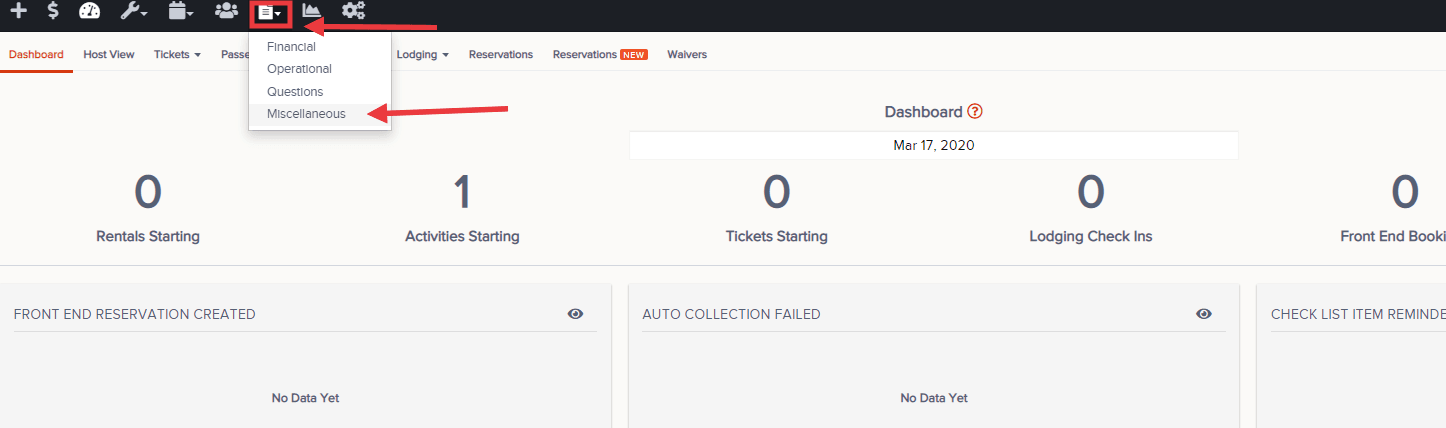
- Go to the Reports dropdown and click Miscellaneous
- Click Client Participation from the options on the left
- Choose the filter box to determine which items (i.e. activities, lodging, etc.) to view on the report. Other filter options include a pre-fixed timeframe (left of date range) or manually choosing dates within a custom timeframe (see below)
- Once entered, select Apply and the report will be added to the queue to begin downloading
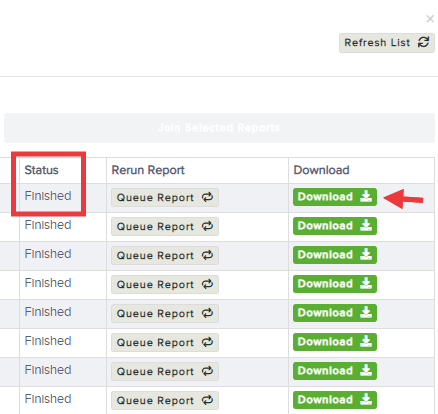
- When the report status has changed to "Finish", select Download to open in Excel
Note: you may need to click on the downloaded item before it will open