To create a Lodge in your Flybook account,
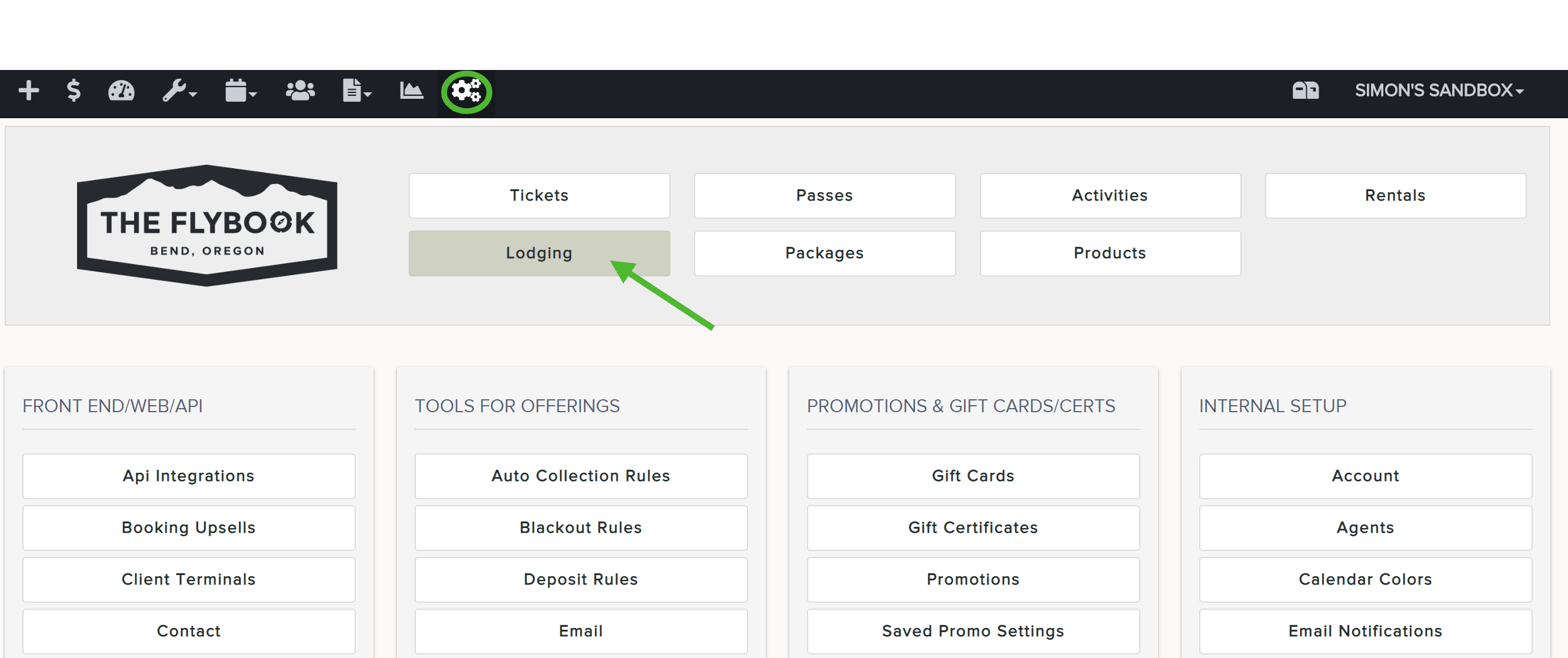
- Go to SETUP and click on Lodging
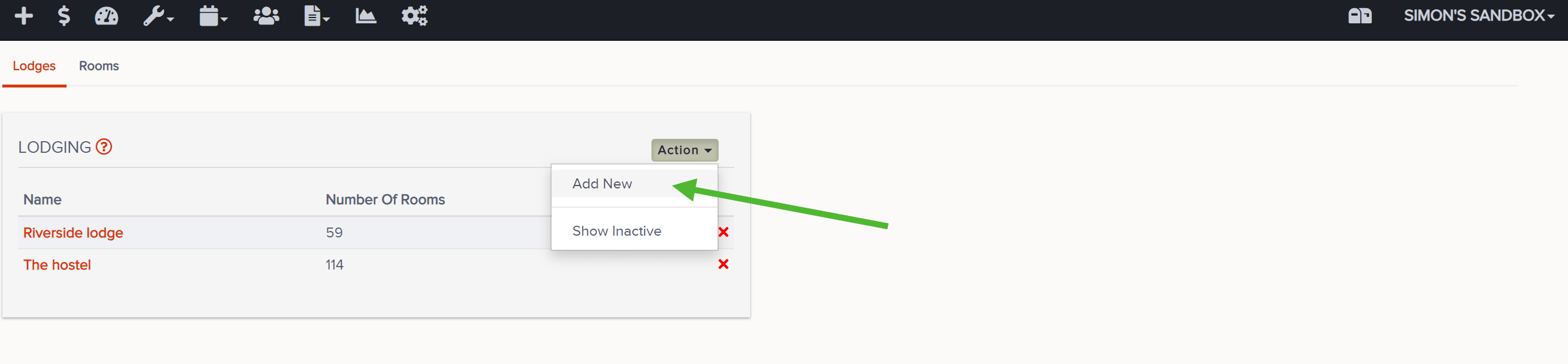
- Click on Action dropdown and Add New
- Give your Lodge a name and hit Create
- Click on new lodge from list on the left
- Update the correct Check-In and Check-Out Hours
- Optional: Toggle to Min. Night Stays Schedule if you wish to add a minimum number of nights required to make a booking on any given day(s)... reference this article for help: https://theflybookhelp.zendesk.com/hc/en-us/articles/217749968
- Click "Back to Lodging List" in top right corner
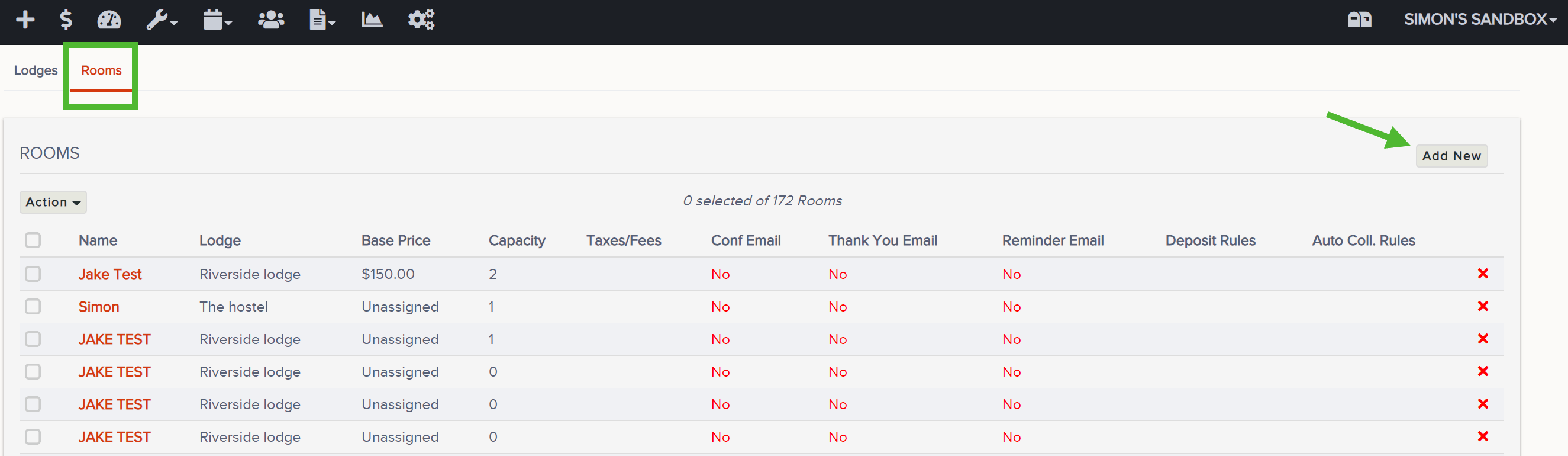
- Select Rooms to add rooms within the newly created Lodge category
- Fill out applicable info for number of rooms being added, and to what lodge. Repeat this process until all rooms have been created
- Edit individual room info by clicking into the room and modifying fields such as description, bed config, pricing, blackouts, etc.
- Optional: you can bulk edit rooms. Reference this article for help: https://theflybookhelp.zendesk.com/hc/en-us/articles/217748398
- Be sure to always save your work
You're all done with Lodges and Rooms!