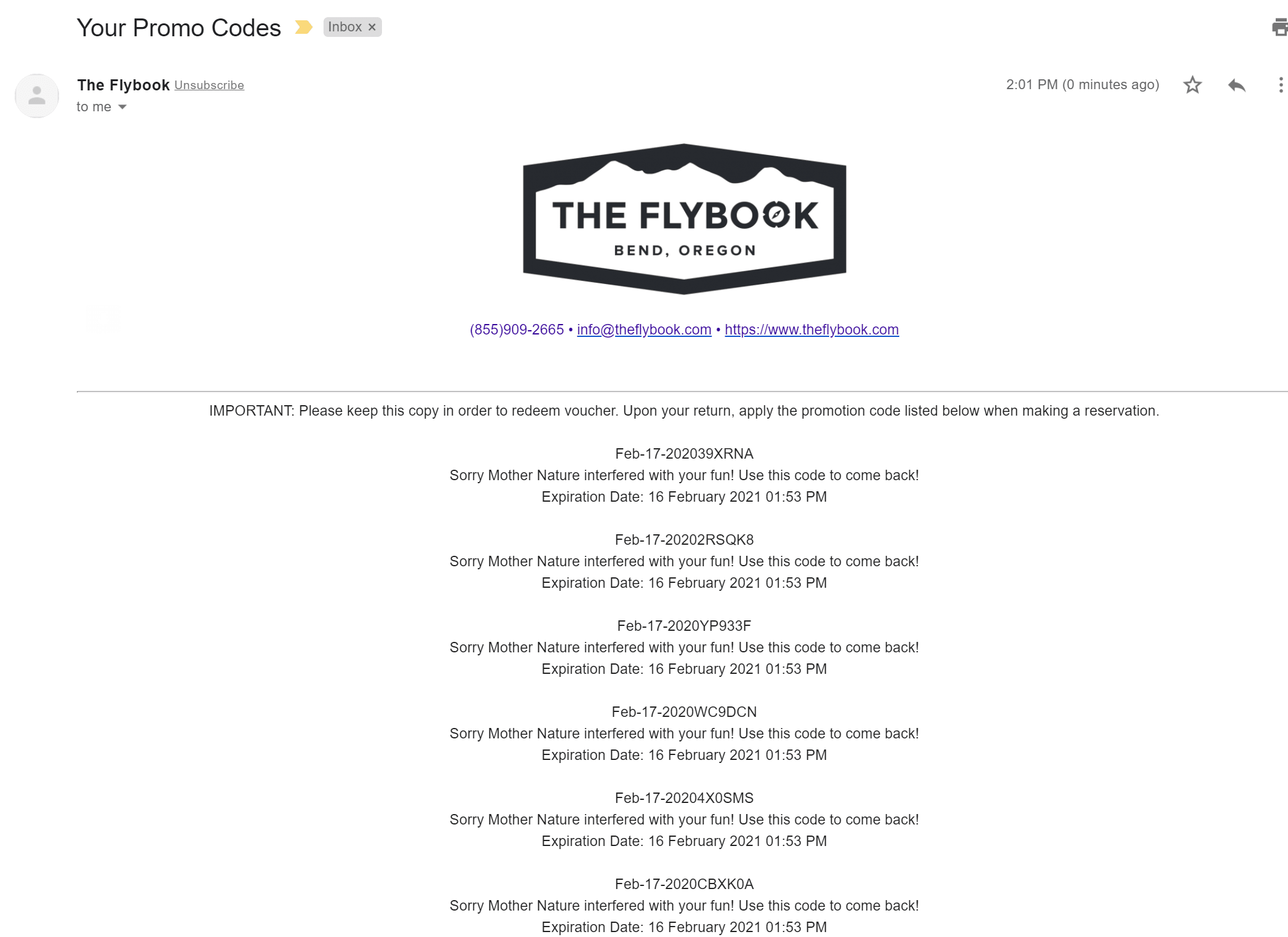
Quick Add promos give you a way to quickly create multiple promo codes at one time and either print them on your receipt printer or email them to clients. An example of when you might use this feature is if you suddenly need to close, for perhaps a thunderstorm, and want to issue promo codes for your clients to come back at a later date.
To create Quick Add promos you'll first need a Saved Promo Setting. Then, follow the steps below to create your Quick Add promos.
- Under Tools, select Promotions

- From the Action drop-down, select Quick Add

- A window will open where you will select the Saved Promo Setting from the label drop-down, enter the number of codes to create and can choose a prefix for the codes you're about to create. The default prefix is today's date. Once you've completed that, click Create Codes.

- You will then see the list of codes that were created and can choose to print or email the codes.

- If you choose to print the codes, this is an example of what the print out would look like. The highlighted text is customizable in the Saved Promo Settings. Where this example says The Flybook, your company name would be there.

- If you choose to email the promo codes, this is an example of what the email will look like. Please note, all promo codes will be sent the one email address.