Navigation: Setup>>Promo Config
Gift Certificates are a great way to promote a specific activity that you may want to sell for a discounted price or a regular price depending on the type of promotion. It is a three-step process and involves setting up a promotion config and a saved promo setting.
Step 1) Create the Promotion Config
Step 2) Create a Saved Promo Setting
Step 3) Create the Gift Certificate - see steps below
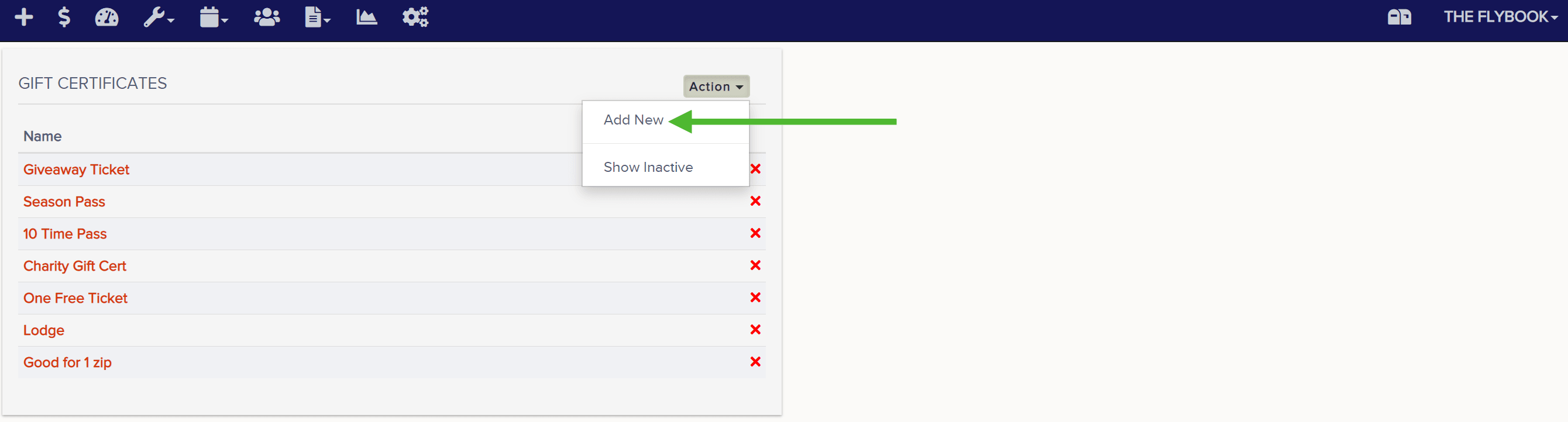
- Go to Setup and click on Gift Certificates

- From the Action drop-down select Add New. Then name the gift certificate and click Create.
- Here you'll complete the info on the General tab.
Enter the price you want to sell the gift certificate, select a Saved Promo Setting from the drop-down, and enter the number of promos purchased with each gift certificate purchased. You can also choose to allow backend users to override the cost of the gift certificate, allowing backend users to sell the gift certificate at a discounted price different than the price you enter as the cost here.
If you want to sell the gift certificate on the front end (on your website), you'll want to select the checkbox Front End Enabled. If you want your customers to be able to purchase multiple of this gift certificate in one transaction, select the checkbox Allow Guests to Choose Quantity.
Select at least one of the two delivery methods. The email delivery option will automatically email the gift certificate to the recipient. The paper mail option will require you to print and mail the gift certificates to the recipient. The paper mail option does allow you to add a shipping cost as well.
You can also fill out the info on the right-hand side of the page which will display on the gift certificate.
When done, scroll down and click Save.
- Now you'll move on to the Template tab.
Here you will need to set a template for any delivery method you selected on the General tab in the last step. You can use the default template we provide or you can create your own templates using HTML code. If you want to create your own template, you can use the template tools listed at the bottom of that page. No matter what template you choose, make sure you save before trying to preview the templates.
Below is an example of what our default email template looks like for a gift certificate in which the recipient receives two promo codes.
Below is an example of what our default paper mail template looks like for a gift certificate in which the recipient receives two promo codes.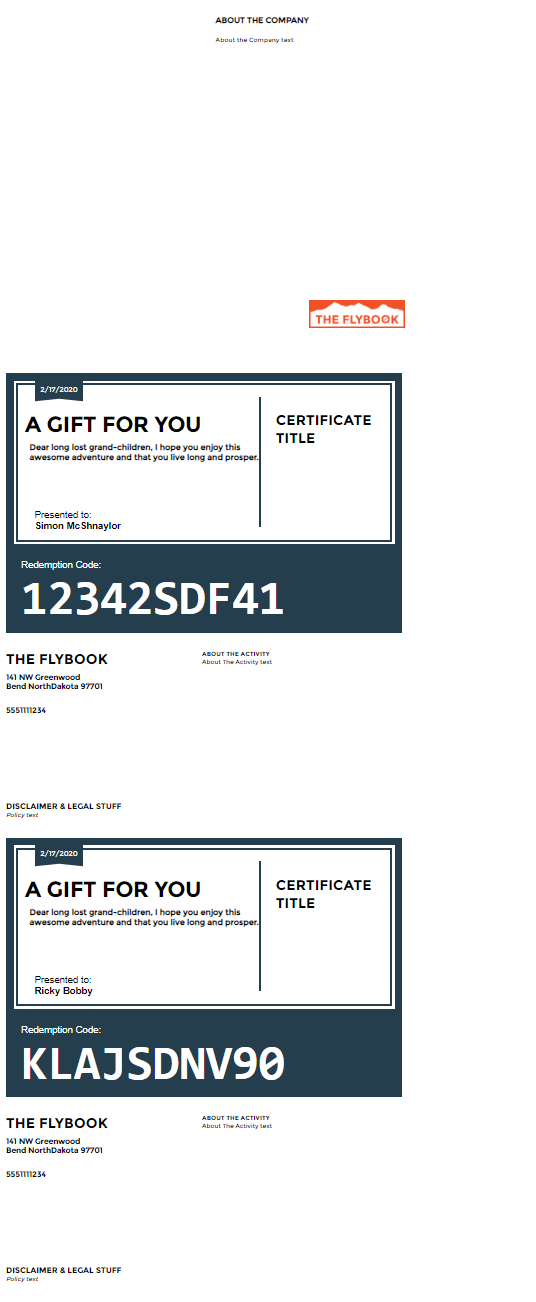
- After you've set your templates, you will move on to the Taxes/Fees tab.
Here you can set any taxes or fees you want to be associated with the sale of this gift certificate.
- Now that you've created your gift certificate you can sell the gift certificates on the backend under Tools. If you want to sell the gift certificates on the front end, you'll need to go to Setup --> Web Integration --> Offerings and create a new front end offering. When creating the offering, make sure to select the gift certificate name from the Entity Type drop-down.